English
1. Introduction
This app is to operate "Physical Assessment Simulator Physiko Plus 2.0", featuring improved user-friendliness.
Four training modes have been prepared to meet a variation of educational needs.
This guide provides step-by-step explanations of each mode, screen layout, and operating procedures.
2. Table of Contents
3. Top Screen
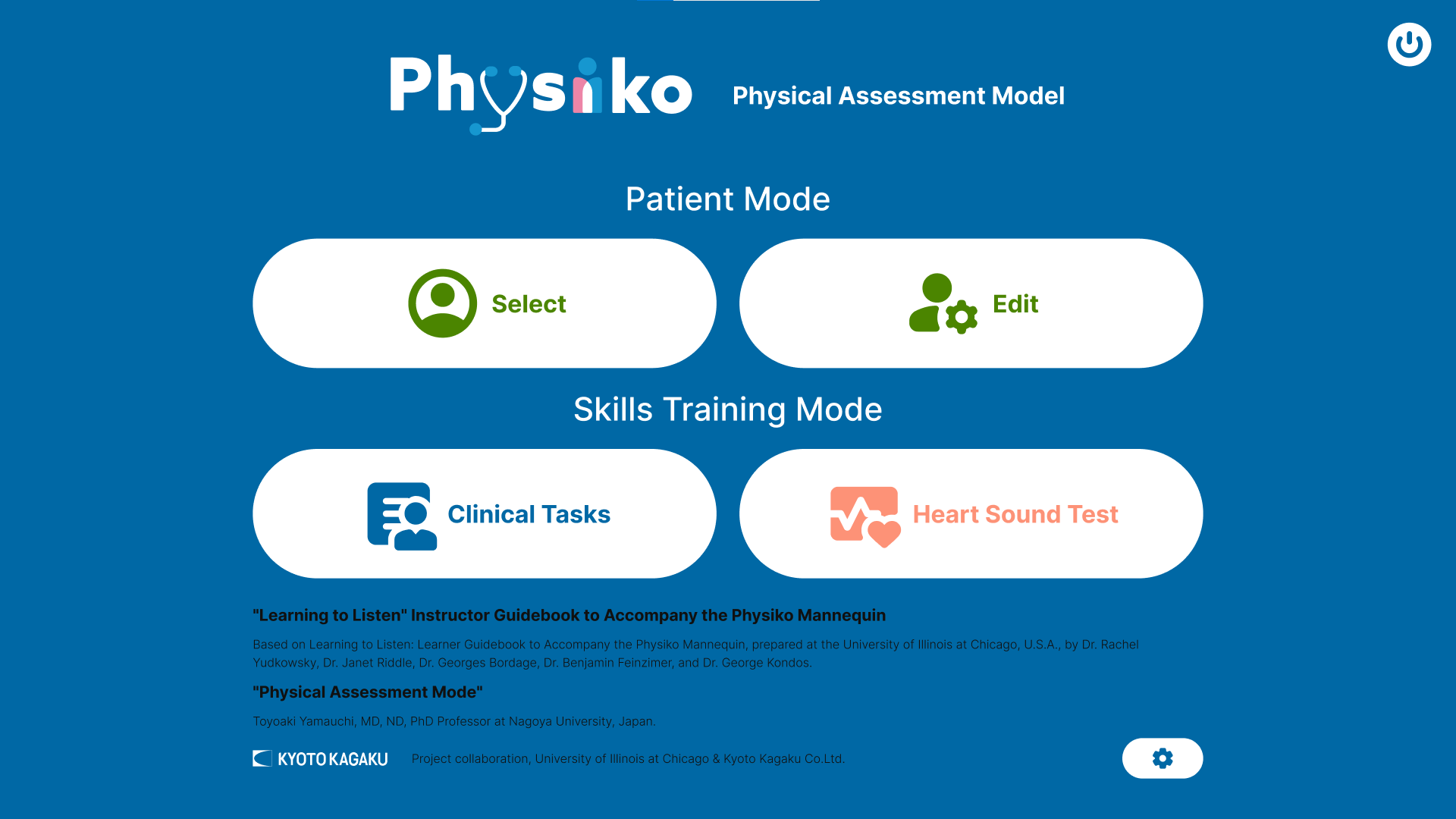
This app is designed for skill training of healthcare professionals. It features two patient scenario-centered training modes and two skill training modes for individual task skills.
[Patient Mode]
- Select: Select a patient from the list of twelve patient examples for training.
- Edit: Create and edit original patients' data.
These patient modes aim to provide comprehensive learning of physical assessment based on scenarios.
[Skills Training Mode]
- Clinical Tasks: A training mode to practice clinical skills such as assessment of vital signs.
- Heart Sound Test: A training mode to practice identifying and differentiating between various heart sounds.
These modes are suitable for concentrated training designed to build specific competencies or improve existing techniques.
4. User Account Types
"Heart Sound Test" mode is configured with four different types of user accounts, each with specific permissions: administrator, instructor, student, and guest. The access rights for each type are as shown in the table below.
| Function / Permission | Administrator | Instructor | Student | Guest |
|---|---|---|---|---|
| Create Account (Instructor) | 〇 | × | × | × |
| Create Account (Student) | 〇 | 〇 | 〇(*1) | × |
| User Account Management | 〇 | 〇 | △(*2) | ×(*3) |
| Conduct a Test | 〇 | 〇 | 〇 | 〇 |
| Save Test Results | × | × | 〇 | × |
| View and Output Test Results | 〇 | 〇 | △(*2) | × |
*1: A student account can be created on the login screen.
*2: Permission to view, edit and output only their own account info and test results
*3: Guest user without an account isn't permitted to create, edit, or save any data.
5. Common Section
5.1 Patient Screen
A common user interface is used for most patient screens in all modes except for "Clinical Task".
The screen includes basic menus such as "Top" and "Settings", as well as menu buttons for individual clinical skills.
📋Patient Screen
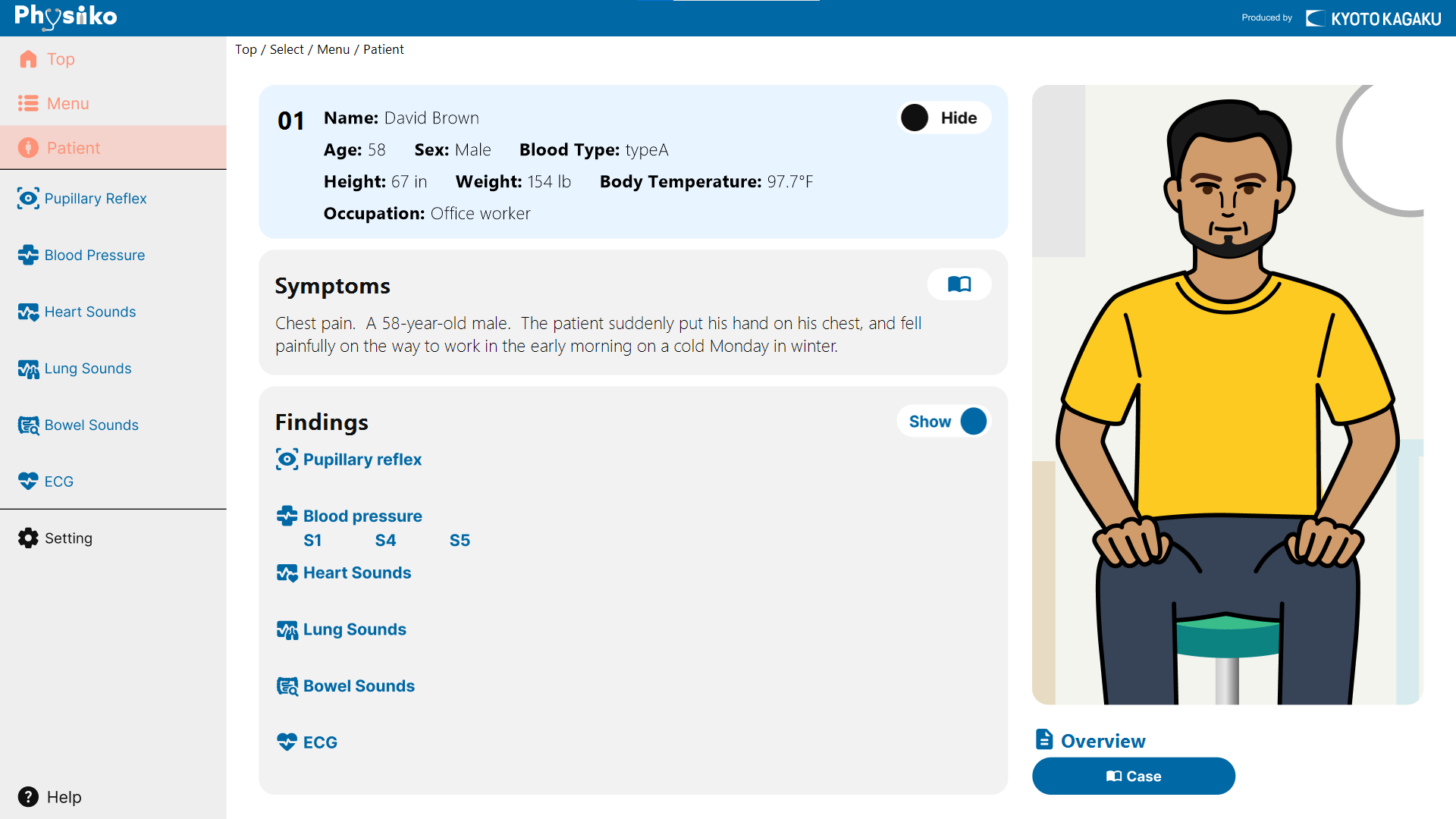
- Top
Return to the app's home screen.
- Menu
Select training items. The set of menu items vary depending on the training mode.
- Patient
Opens a screen of patient information including symptoms, findings, etc.
The Show/Hide buttons allow for managing the visibility of individual information items.
- Setting
Set the volume, language, etc.
- Help
See the user guide for instructions on how to use the app.
- Case
Describe the key aspects of patient assessment and observation.
5.2 Clinical Tasks Screen
A common user interface is used for most of patient screens in all modes, except for "Clinical Task.”
The display design of heart rate, blood pressure, and explanation of findings are common for all training modes. When working on the clinical skills mode, select a finding on this screen.
Common Display Items:
- Select Findings
Select clinical findings for training. The selected findings are instantly synchronized with the simulator.
The findings are fixed except for "Clinical Tasks" mode.
- Heart Rate
Current heart rate of the simulator
- Blood Pressure
Systolic / Diastolic blood pressure value.
- Findings
Display a window with in-depth information about the selected findings.
Below is an overview of the features of each procedure screen and the common elements:
📋Pupillary Reflex: Training in observing and assessing pupillary reflexes and pupil diameter changes.
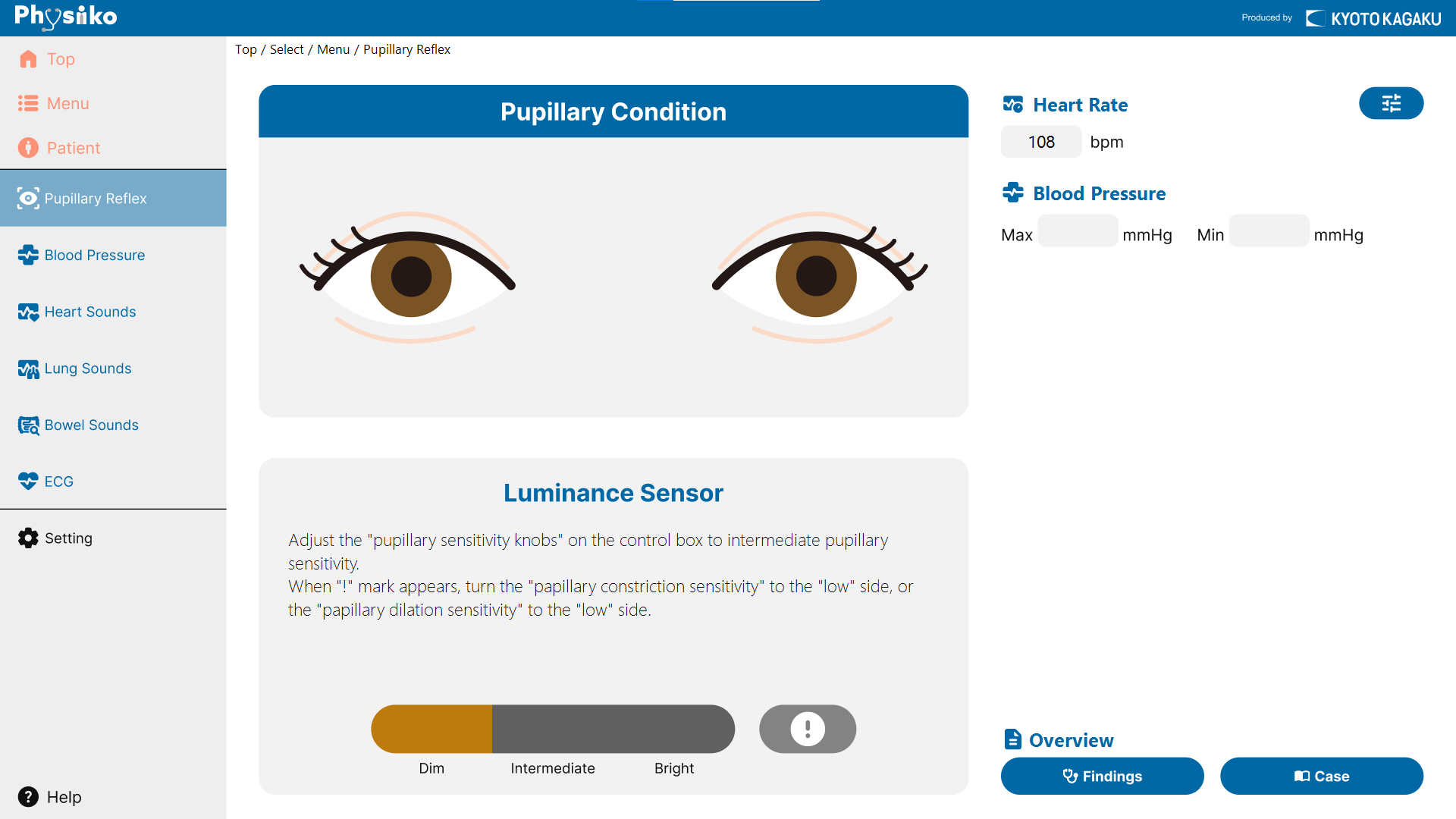
- Pupillary Condition
On-screen pupil size changes together with the simulator’s pupil.
- Luminance Sensor
Brightness sensitivity adjustment using the knob on the control box
📋Blood Pressure: Training to measure blood pressure by listening to Korotkoff sounds with a visual cuff pressure graph.
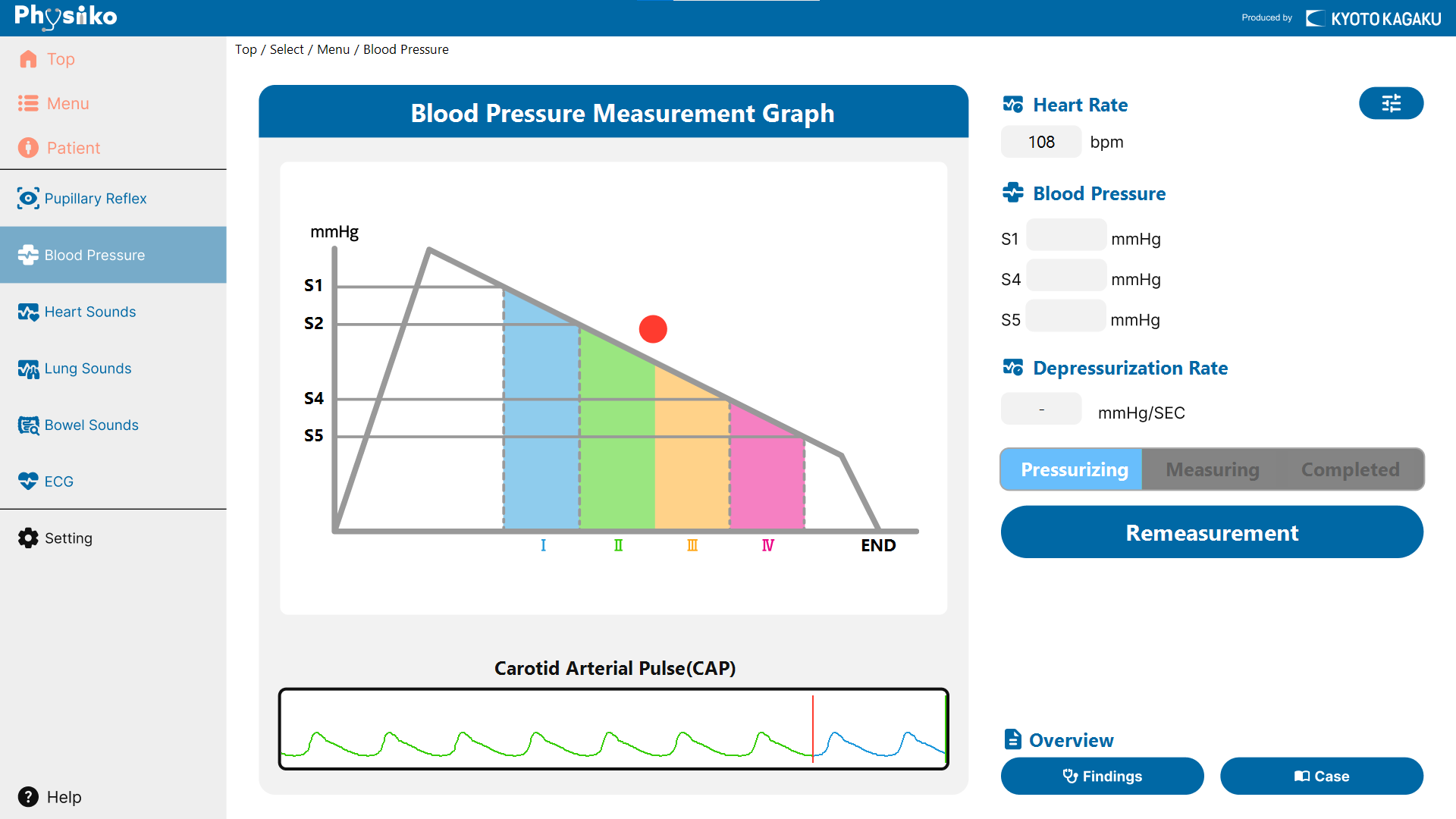
- Blood Pressure Measurement Graph
The color of the graph line changes according to the cuff pressure, visually showing the current Korotkoff phase.
- Carotid Arterial Pulse(CAP)
Displays the carotid artery waveform synchronized with the heartbeat.
- Measurement Stage
Shows the current stage: “Pressurizing,” “Measuring,” or “Completed.”
- Remeasurement
Measure the blood pressure again under the same conditions (blood pressure value)
📋Heart Sounds: Training to recognize and differentiate heart sounds at the four main auscultation sites.
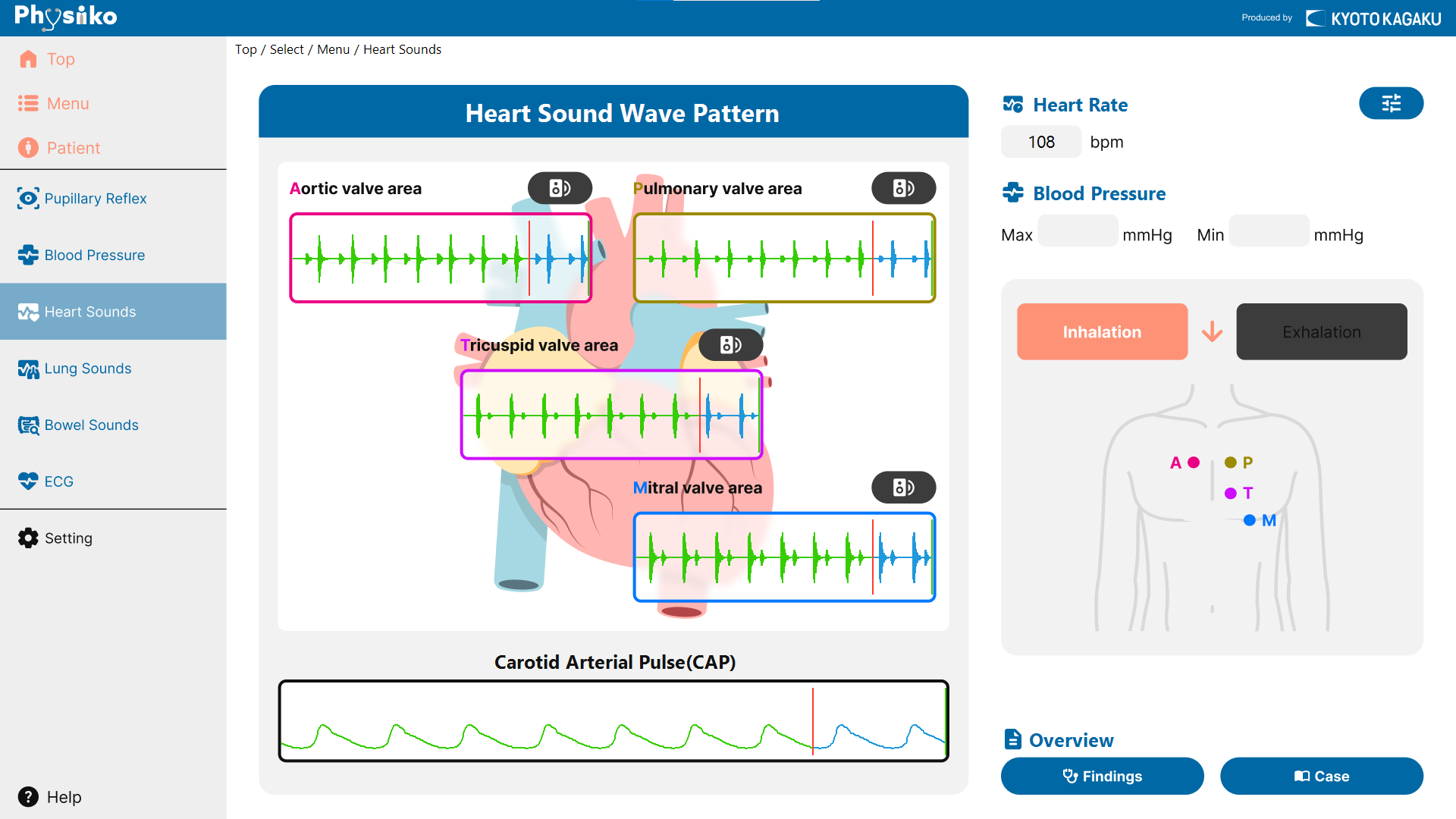
- Heart Sound Wave Pattern
Dynamic waveforms synchronized with the heart sounds are displayed for the four main auscultation sites—aortic, pulmonic, tricuspid, and mitral.
- Carotid Arterial Pulse(CAP)
Displays the carotid artery waveform synchronized with the heartbeat.
- Auscultation sites
The illustration shows the four main auscultation sites: aortic, pulmonic, tricuspid, and mitral.
📋Lung Sounds: Training to recognize pulmonary sounds across upper to lower lung fields, anterior and posterior, and at the trachea.
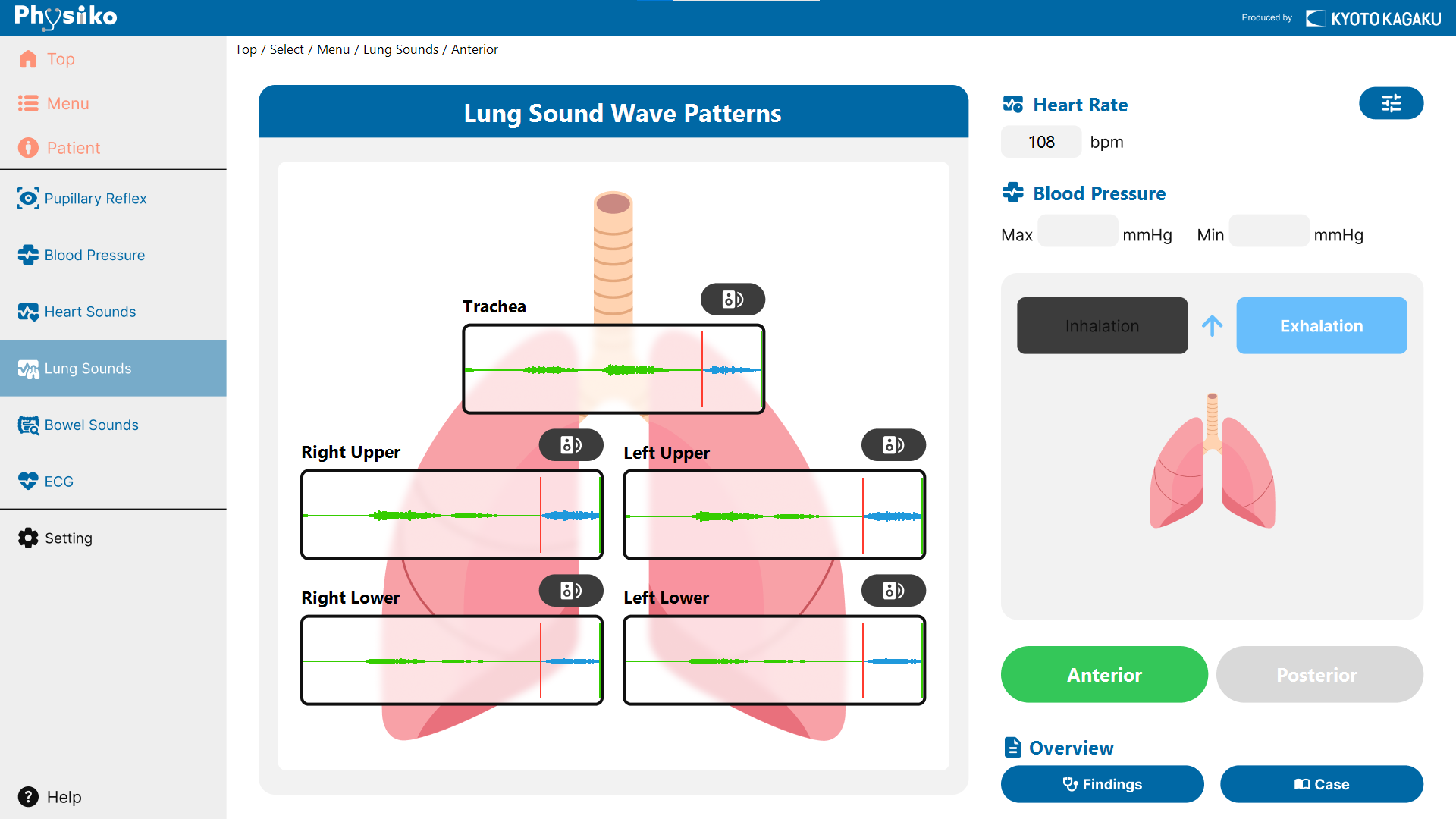
- Lung Sound Wave Patterns
Shows lung sound waveforms corresponding to the trachea and the anterior/posterior upper/lower lung fields.
- Inhalation / Exhalation
Shows the timing of inhalation and exhalation with real-time animation.
- Anterior / Posterior
Select the button to switch between anterior and posterior views of the illustration and waveforms.
📋Bowel Sounds: Training to recognize normal and abnormal sounds by auscultation.
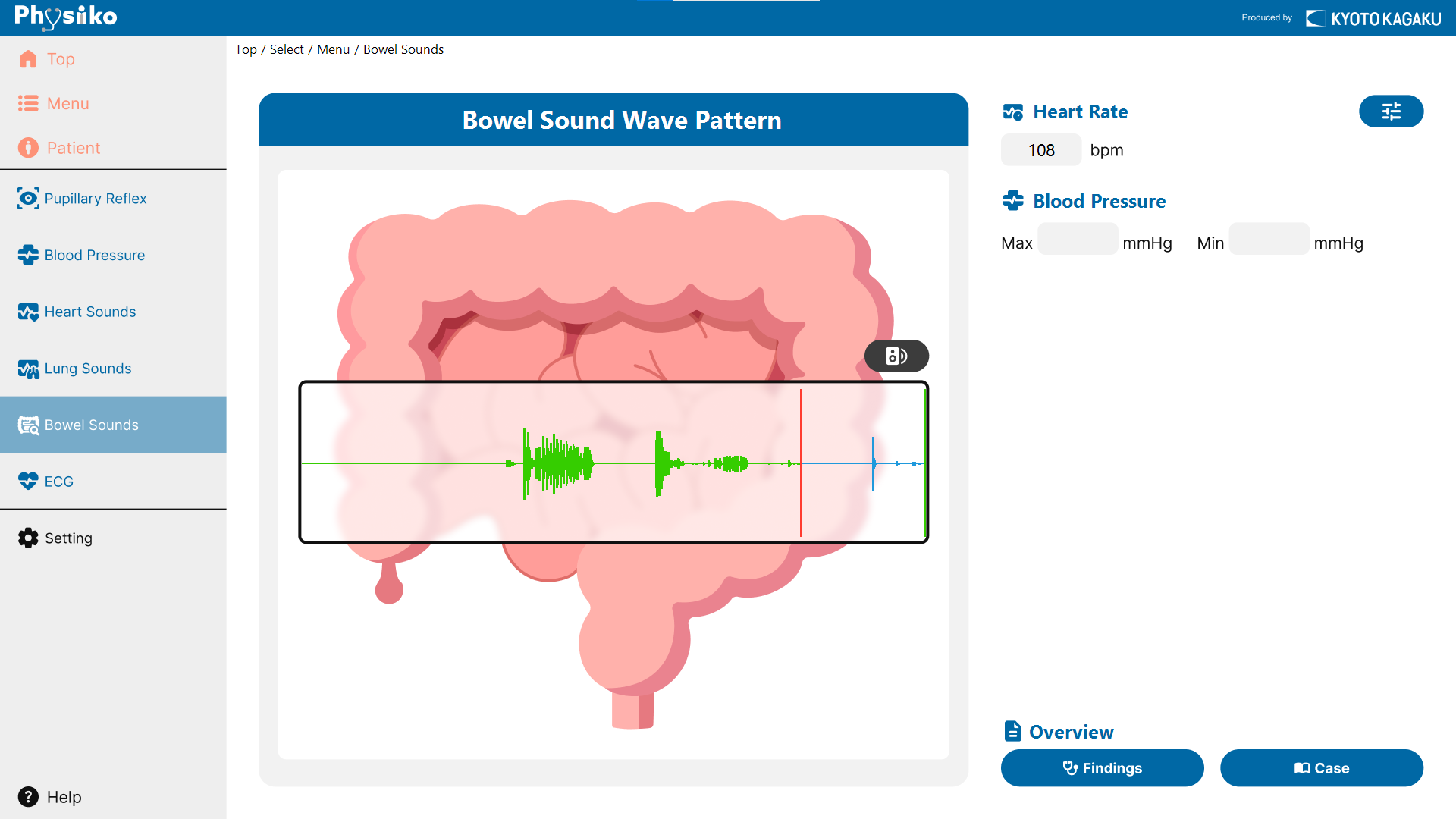
- Bowel Sound Wave Pattern
Displays sound waveforms corresponding to bowel sounds.
📋ECG: Visual verification of electrode placement and training in 12-lead ECG waveform assessment.
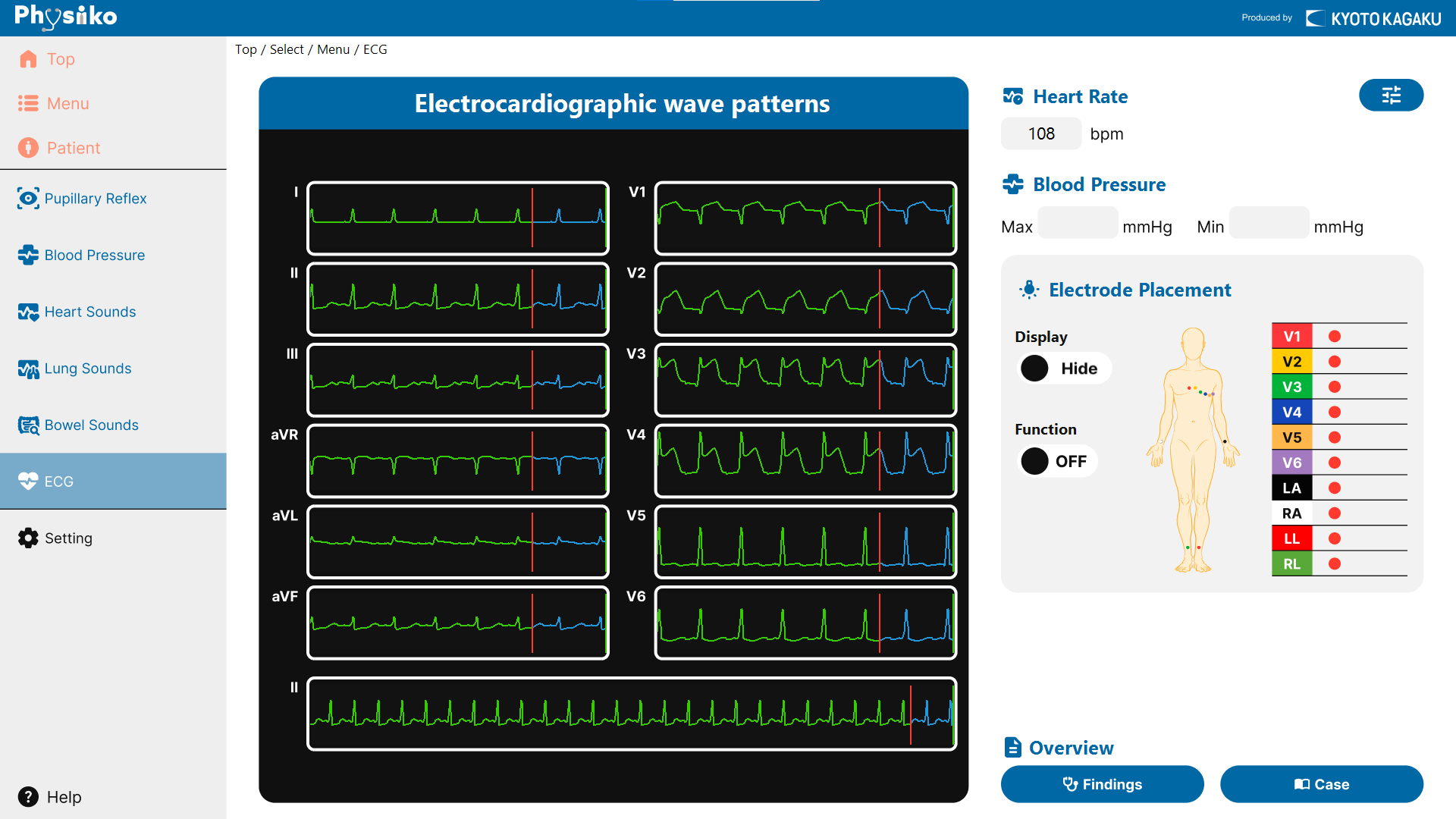
- Electrocardiographic Wave Patterns
Show waveforms of 12-lead ECG
- Electrode Placement (Display)
Placement signs appear when the electrodes are correctly positioned at each designated site: V1–V6, LA, RA, LL, and RL.
- Electrode Placement (Function)
Toggles whether to use ECG electrode placement features.
- ON: Displays the waveform when electrodes are correctly positioned.
- OFF: Displays the ECG waveform regardless of electrode placement.
5.3 Common Icons

Opens a pop-up with additional information on symptoms and findings.

Shows the text.

Hides the text.

Changes vital signs settings (heart rate, blood pressure).


Turns external speakers on or off.
6. How to Use Each Training Mode
6.1 Patient Mode: Select
6.1.1 Overview
Patient Mode: “Select” mode allows training with one of twelve preset patients.
Each patient has distinct background information and case history, enabling a realistic experience of the assessment process.
Subsequent training content and observation points vary depending on the selected patient.
6.1.2 Screens and Flow
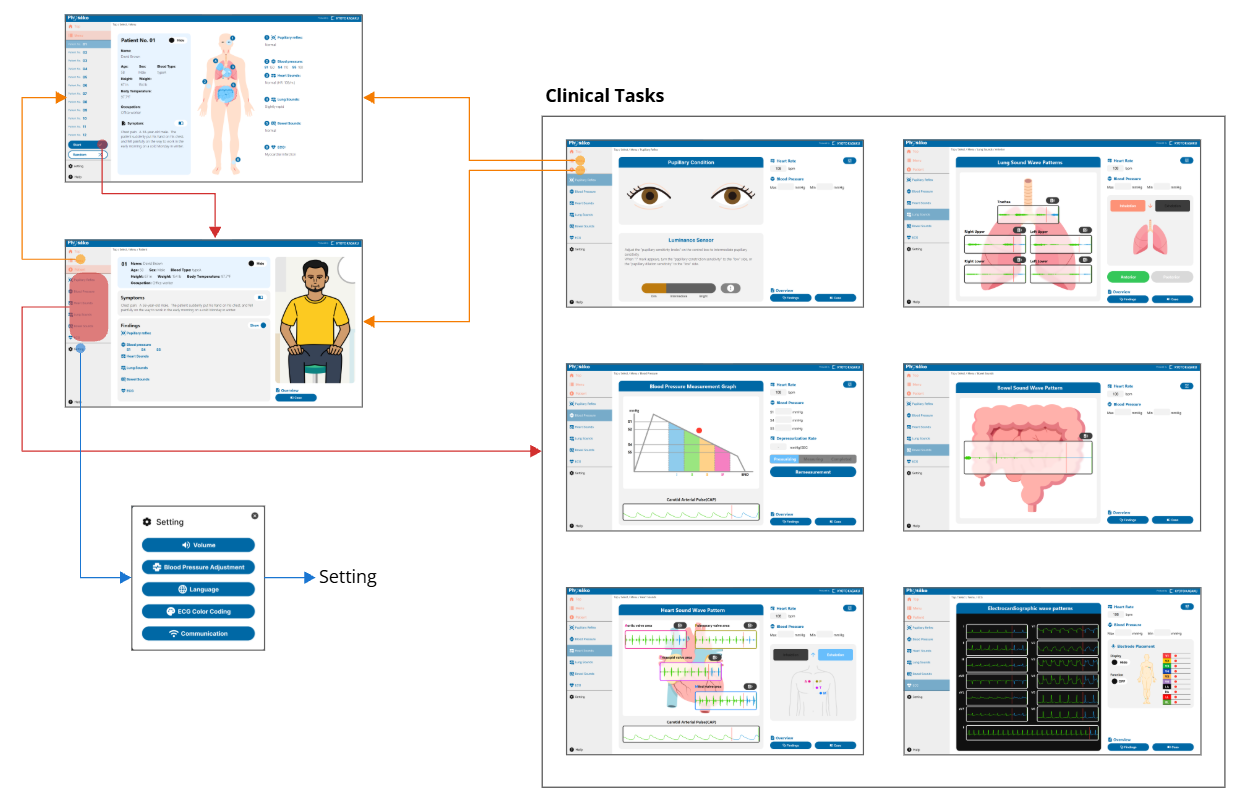
6.1.3 Functions
🖥Patient Selection: Select a patient dataset from the twelve available presets.
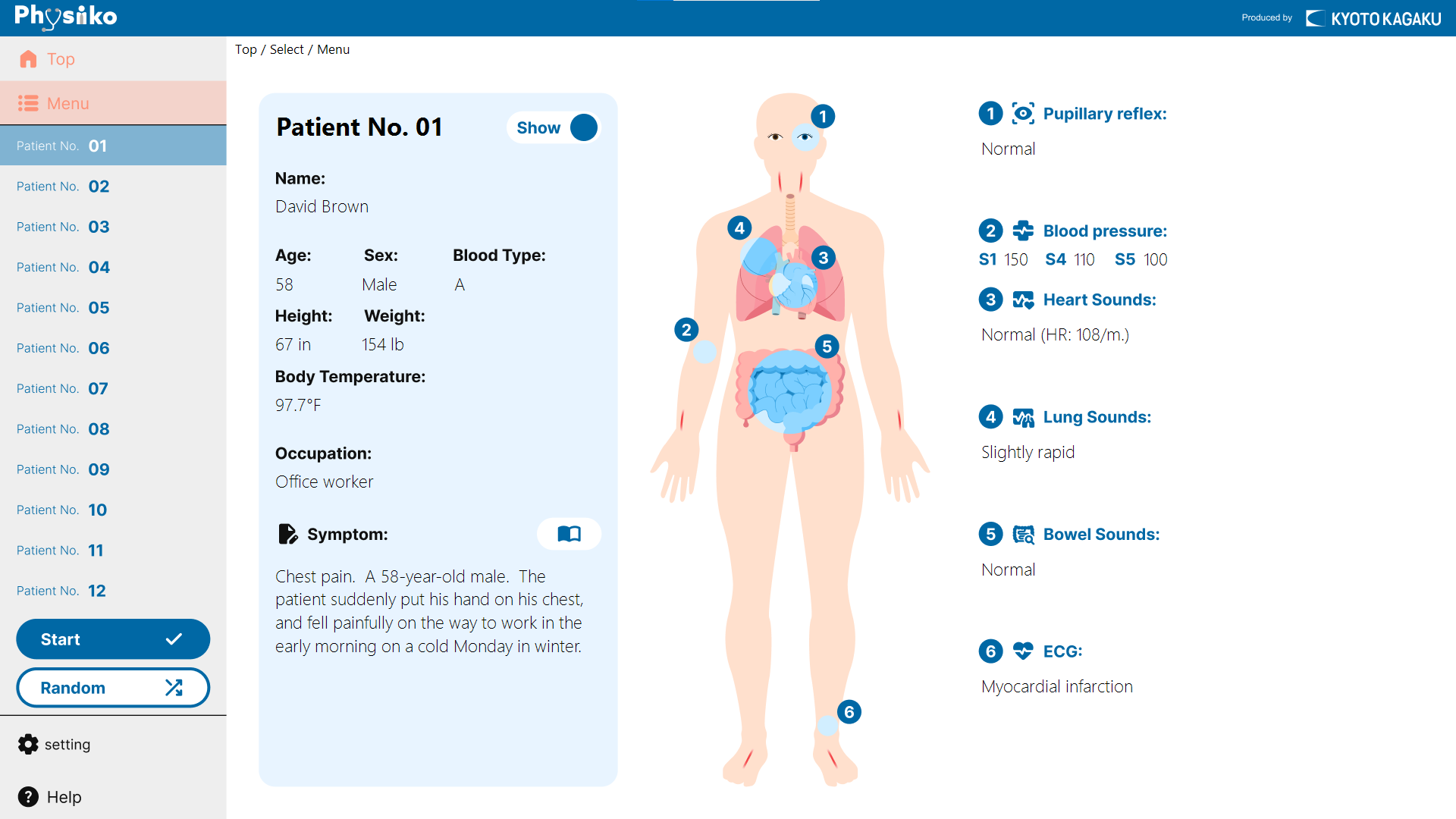
- Patient No.
Shows the patient information including the chief complaint.
- Start
Start simulation training with the selected patient.
- Random
Start simulation training with a patient randomly selected from the twelve available presets.
Refer to the “Common Section” for the Patient Information and Clinical Tasks screens.
6.1.4 Operation Flow
🧭[Starting the Simulation]
- On the Patient Selection screen, select a patient and press “Start,” or press “Random” for automatic selection.
- The “Patient Information” screen appears, and the simulator starts based on the selected dataset. Physical assessment training can now begin.
- "Clinical Tasks" screens display real-time vital data including waveforms, pupillary reflexes, and ECG.
6.1.5 Others
Refer to the “Common Section” for the Patient Information and Clinical Tasks screens.
6.2 Patient Mode: Edit
6.2.1 Overview
"Patient Mode: Edit" allows editing of patient data and simulation with the created patients.
The created patients can be saved and opened anytime for reuse.
The "playlist" feature enables setting up to three patients and switching between them at any time during simulation.
6.2.2 Screens and Flow
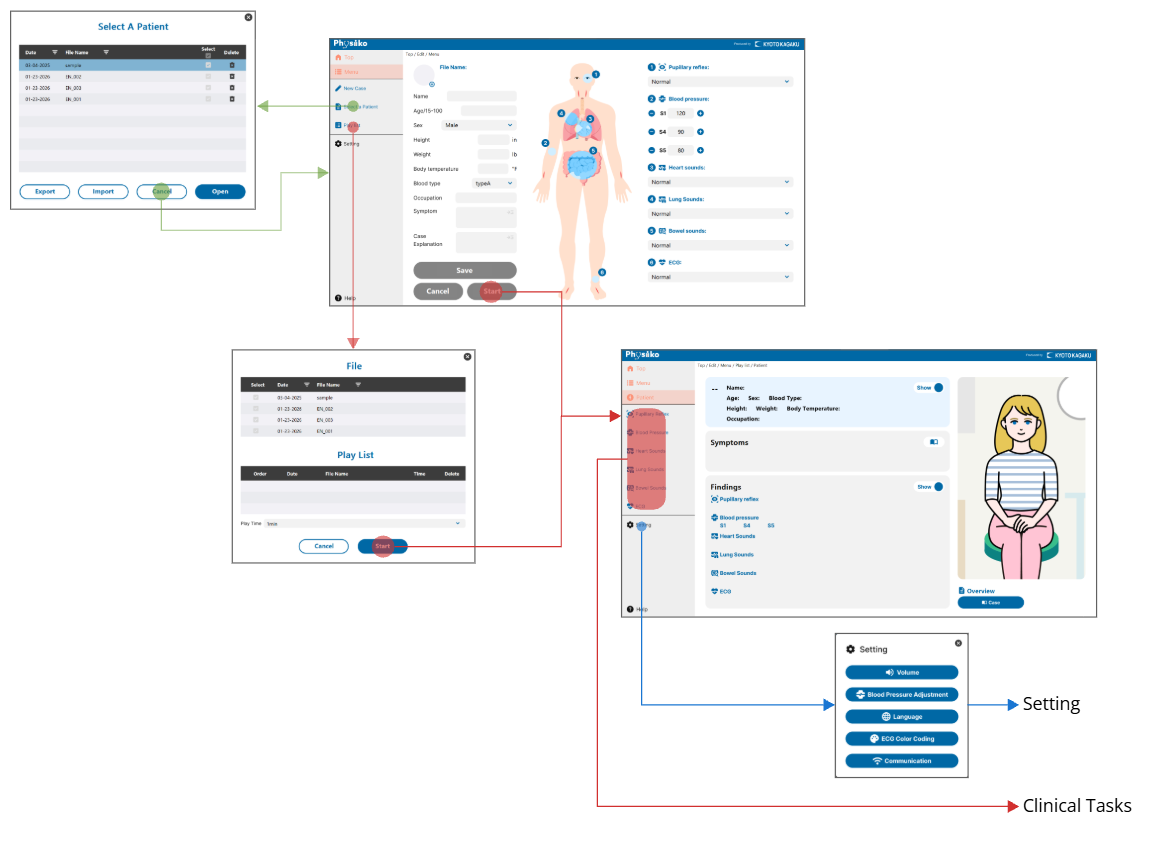
6.2.3 Functions
🖥Patient Editing: Create and edit patient datasets
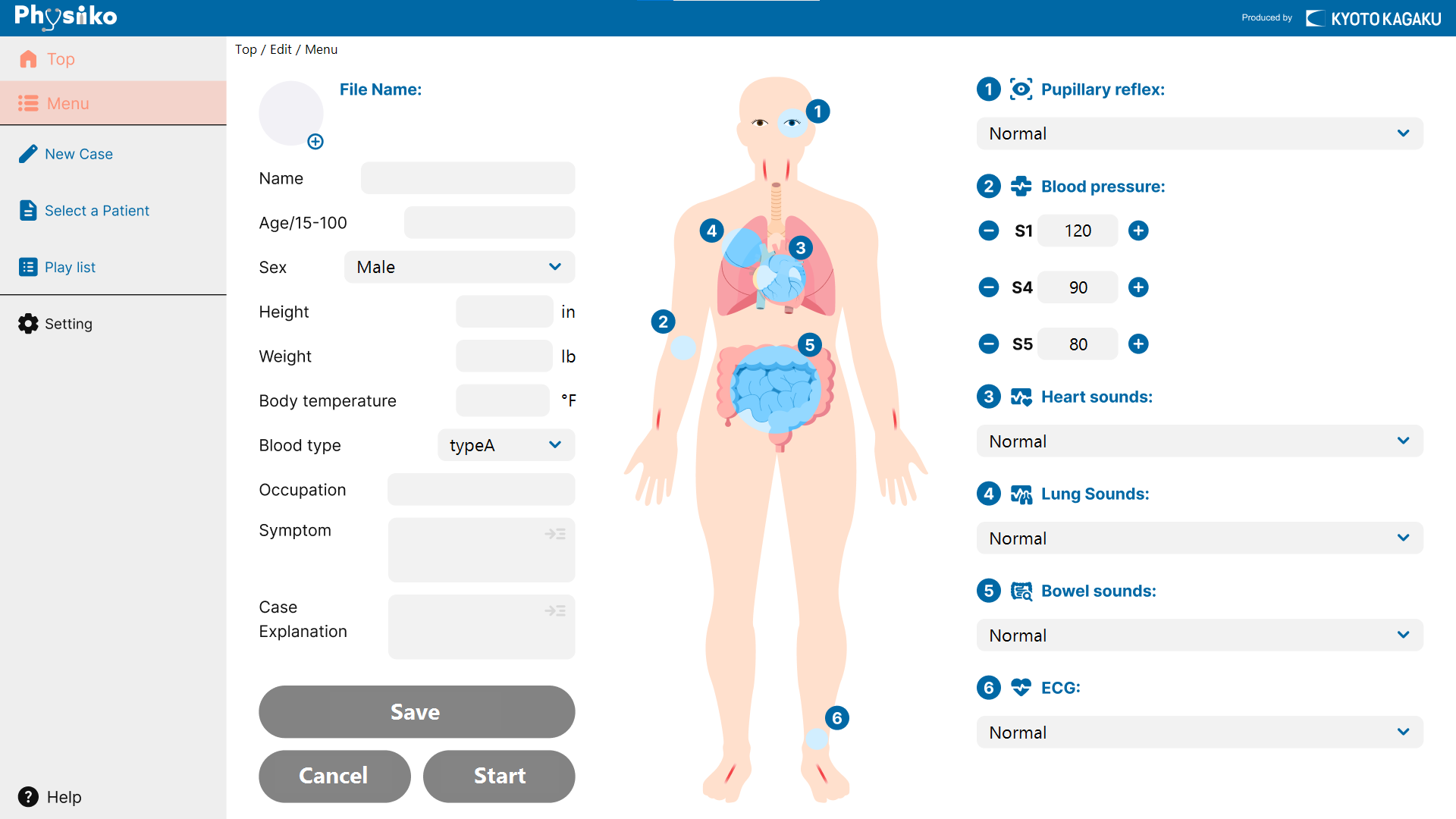
- New Case
Create a new patient dataset, which can then be saved or run in a simulation.
- Select a Patient
Call up a saved patient dataset to run physical assessment training.
- Playlist
Run multiple selected patient datasets, switching automatically at the specified timing.
- Save
Save the patient information.
- Start
Start physical assessment training using the entered patient dataset.
- Cancel
Discard the unsaved information.
6.2.4 Operation Flow
🧭[Selecting Patient Images]
Enter the following fields to select a patient image. Four image options are suggested based on the entered information.
- age
- sex
🧭[Saving a Patient Dataset]
- To save the entered patient dataset, press the "Save" button.
- When the save screen appears, enter a file name and press "Save" at the bottom right.
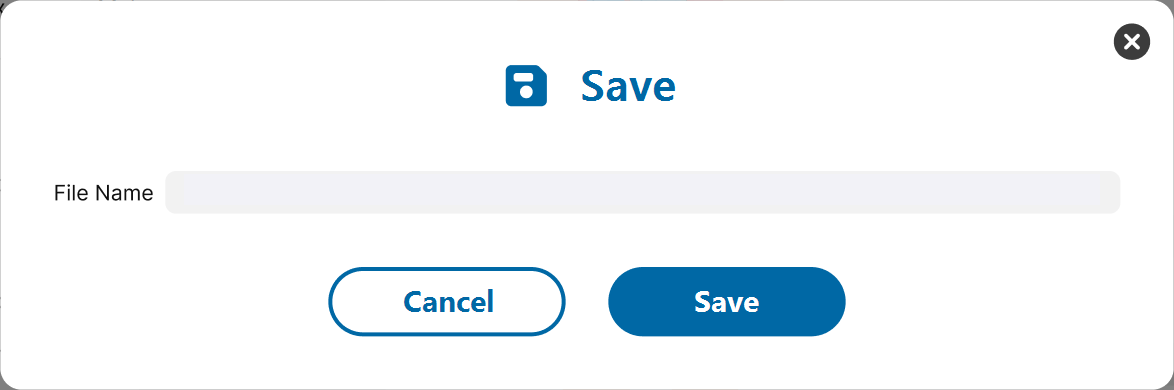
- When the data saved successfully, "File name: XX" will appear in the patient information section.
If a file name is displayed before entering a new one, the existing data will be overwritten when "Save" is pressed.
To save it under a different name, change the file name before pressing Save.
🧭[Opening and deleting saved patient datasets]
- To open or delete a saved patient dataset, press the "Select Patient" button.
- When the Patient Selection screen appears, click the desired file name.
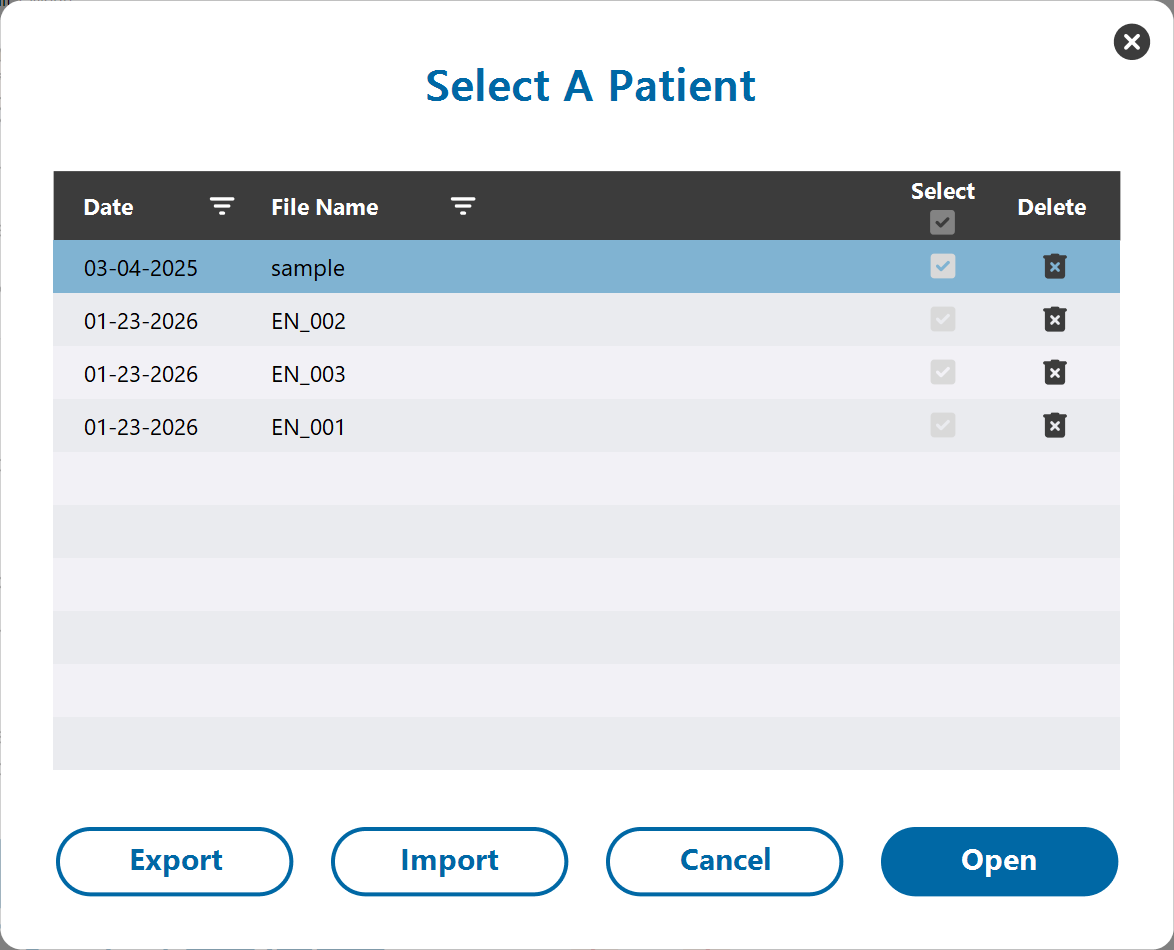
- To open the patient dataset, press "Open" at the bottom right.
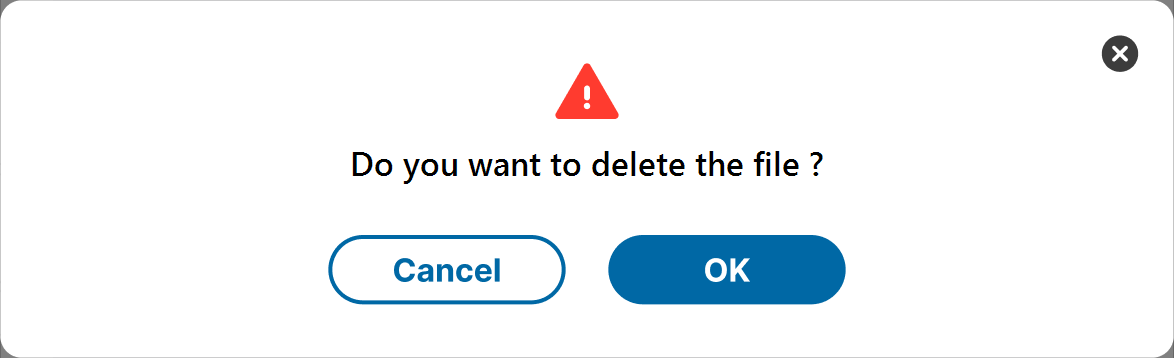
- To delete the patient, press the "x" icon at the far right end of the line.
- When "X" is selected to delete, an alert window appears. Read the message and select "OK" to proceed.
🧭[Exporting and Importing Patient Data Sets]
To export patient datasets to an external device or to import them from an external device, click the “Select Patient” button in the menu.
[Export]
- Connect a USB flash drive to your PC.
- On the Patient Selection screen, check the patient data set to export.
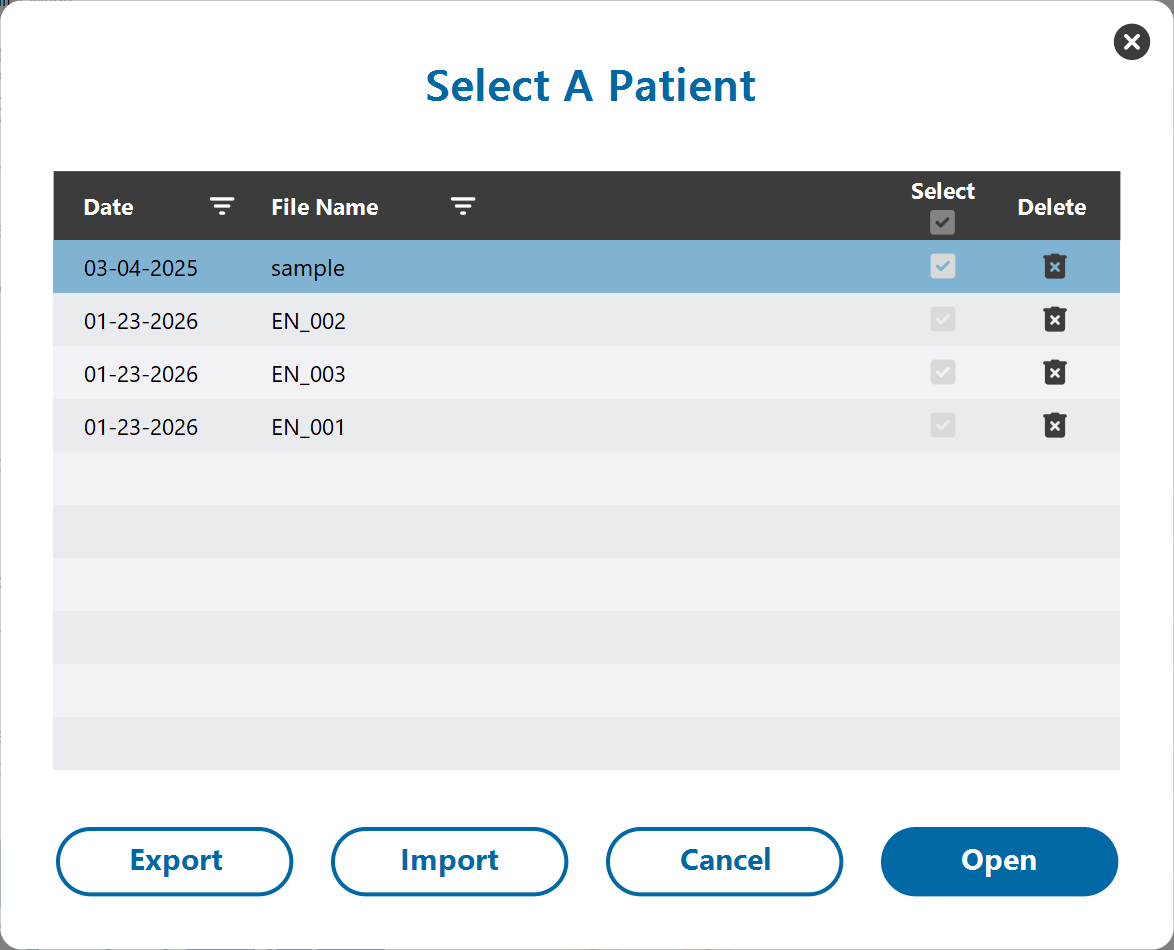
- Click the “Export” button to start the export process.
- Once the export completes successfully, a folder like the one shown below including the file of the patient datasets appear.

[Import]
- Prepare a USB flash drive that contains patient data sets, and connect it to your PC.
- Click the “Import” button to start the import process.
- After the import completes, remove the storage device.
🧭[Playlist Settings]
- To automatically switch patient datasets at specified intervals, press the "Playlist" button.
- When the Playlist screen appears, select up to three patient datasets from Files at the top of the screen.
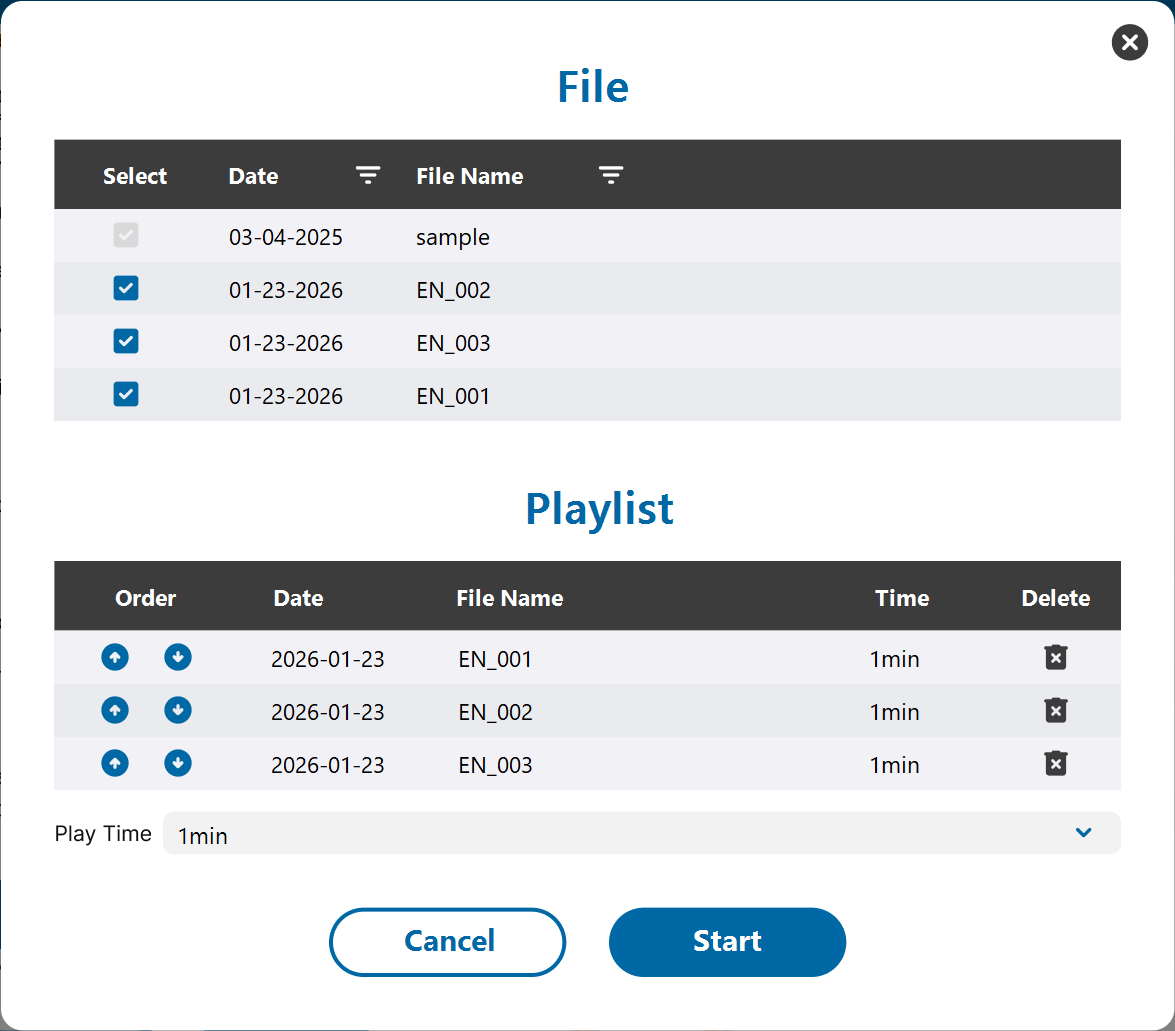
- To change the order of the selected datasets, use the arrow buttons in Playlist at the bottom of the screen.
- The running time for each dataset can be set to 1, 5, 10, 20, or 30 minutes.
- Once the setup is complete, press Start to begin physical assessment training.
6.2.5 Others
Refer to the “Common Section” for the Patient Information and Clinical Tasks screens.
6.3 Skill Training Mode: Clinical Tasks
6.3.1 Overview
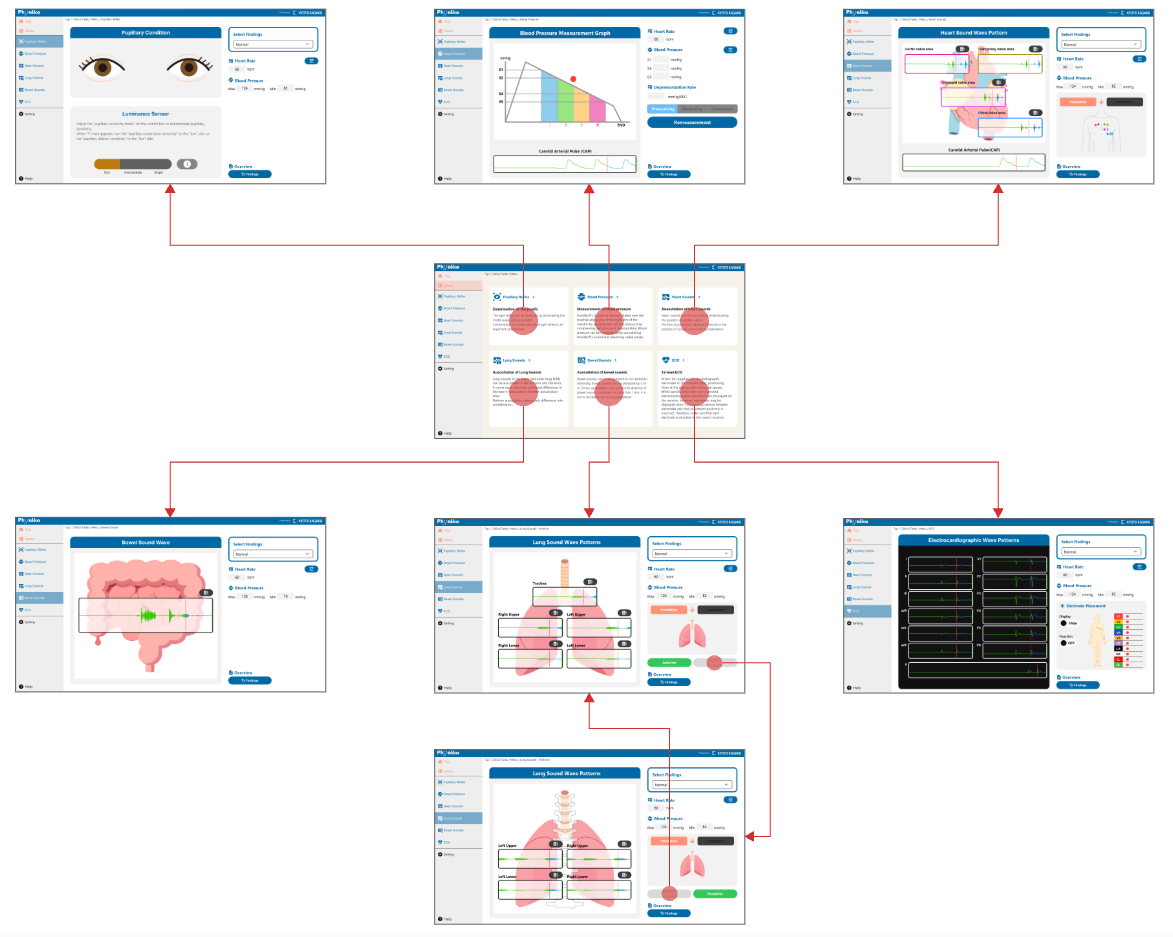
Clinical Tasks mode provides separate training for six clinical skills:
Pupillary reflex, Blood pressure measurement, Heart sound auscultation, Lung sound auscultation, Bowel sound auscultation, Electrocardiogram (ECG)
Each skill is conducted on a dedicated training screen, where pulse waveforms, pupil reactions, dynamic blood pressure graphs, changes in vital signs, and case explanations with clinical findings can be observed.
In this mode, findings can also be selected or switched.
6.3.2 Screens and Flow
6.3.3 Functions
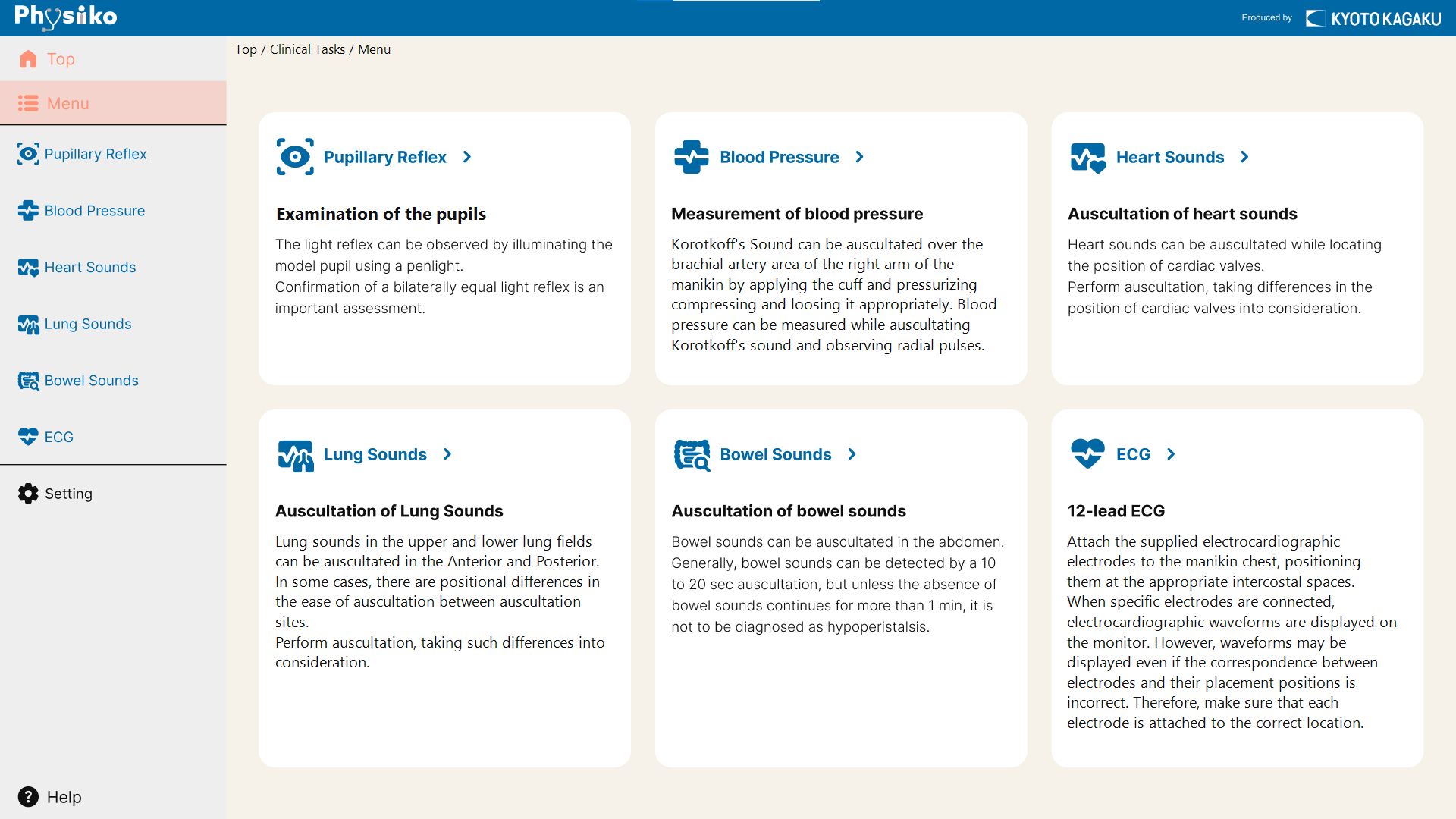
🖥Procedure selection screen: Select the clinical procedure you want to train and the corresponding procedure screen will be displayed.
6.3.4 Operation Flow
🧭[Basic flow to start training]
- On the Procedure selection screen, select a clinical task.
- The training screen for the selected task opens.
- Choose the desired finding (normal or abnormal).
- Adjust vital signs such as heart rate and blood pressure if necessary.
- Begin training on the simulator by observing, listening, and assessing its condition.
🧭[Change the heart rate]
- Click the Vitals Settings icon next to the heart rate field

- Heart rate setting screen opens.
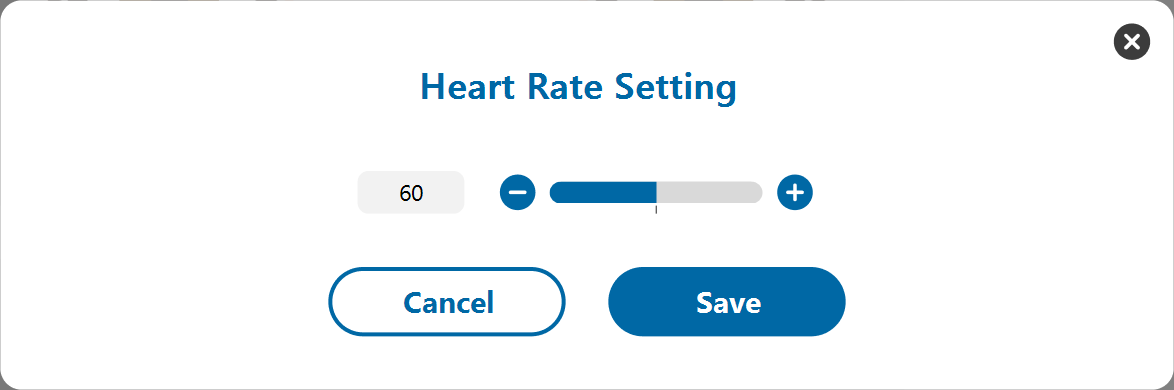
- Change the heart rate using one of the following methods:
- Click the number to open the input field, enter the desired value, and press OK.
- Adjust the value with the slider.
- Press the "+" or "-" button to increase or decrease the heart rate.
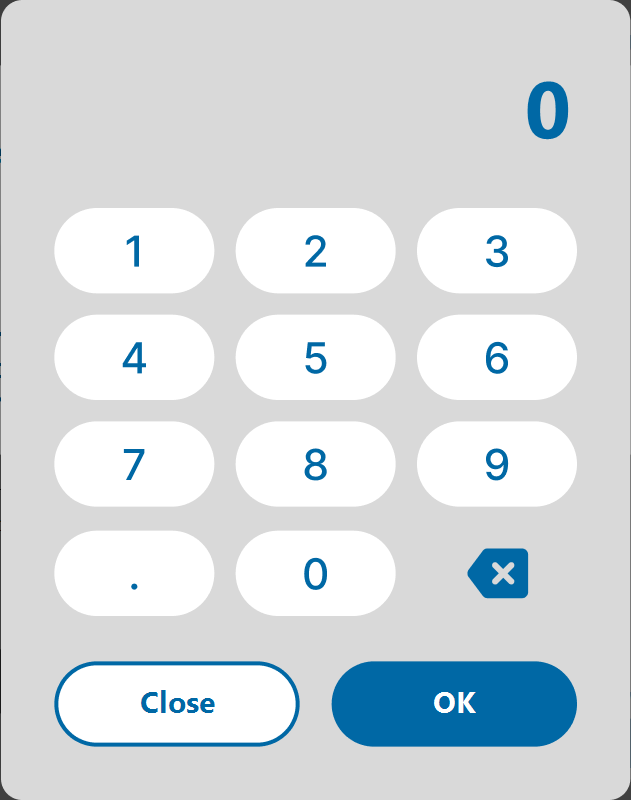
- Press the “Save” button will apply the settings to the simulator.
🧭[Change the blood pressure]
- Click the Vitals Settings icon next to the blood pressure field.

- The settings screen opens.
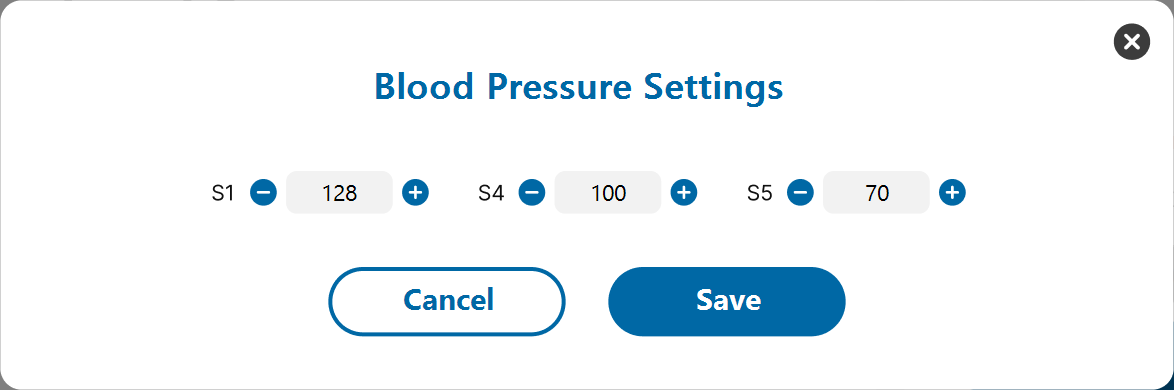
- Adjust the blood pressure by one of the following methods:
- Click the number to open the input field, enter the desired value, and select "OK".
- Press the "+" or "–" button to adjust the blood pressure value.
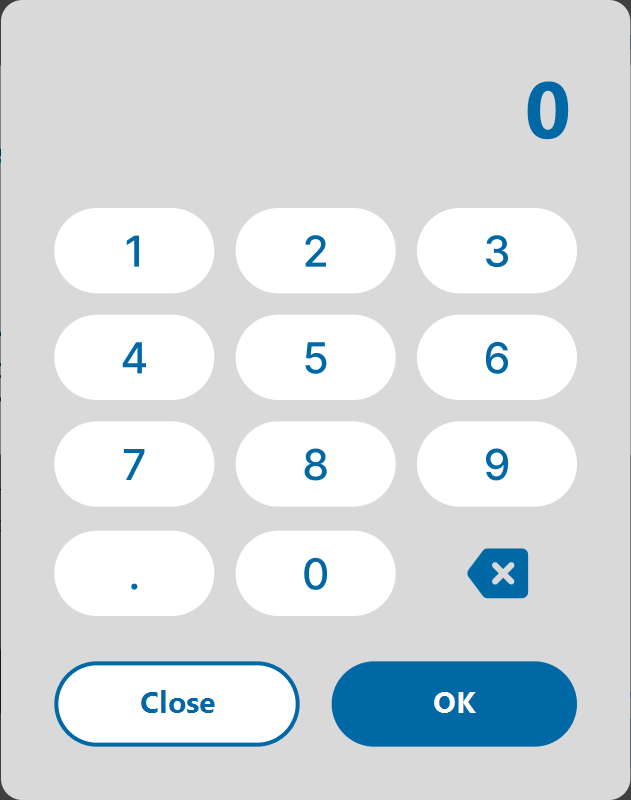
- Press the Save button to apply the settings to the simulator.
🧭[Audio Output via External Speaker]
To output audio to an external speaker, click the External Speaker Output icon near the audio waveform.
- output OFF

- output ON

Output from external speakers is enabled for only one location at a time.
If multiple sites are selected simultaneously, the most recently selected site will be output, and any previous selections will be canceled.
6.3.5 Others
Refer to the “Common Section” for the Patient Information and Clinical Tasks screens.
6.4 Skills Training Mode: Heart Sound Test
6.4.1 Overview
The Heart Sound Test is a quiz-style training that develops skill in identifying heart sounds by listening and selecting the correct sound name.
This mode consists of nine modules, each containing two patients with different cardiac conditions. Trainees select a module and practice auscultation with two patient cases.
Its operation is the same as in Patient Mode or Clinical Tasks Mode, and trainees can switch between the two patients while practicing within a selected module.
This mode also includes the following two unique features.
- Test Mode: This is a test in which trainees listen to the heart sounds and select the corresponding name of the sound. Trainees with a student account can save their own answers.
- Clinical Questions: Q&A quiz related to heart sounds, allowing trainees to deepen your clinical knowledge in addition to auscultation.
This mode has three types of account with different roles and permissions: Administrators, instructors, students, guests. For details, refer to the "User Account Types" section.
6.4.2 Screens and Flow
Administrator / Instructor
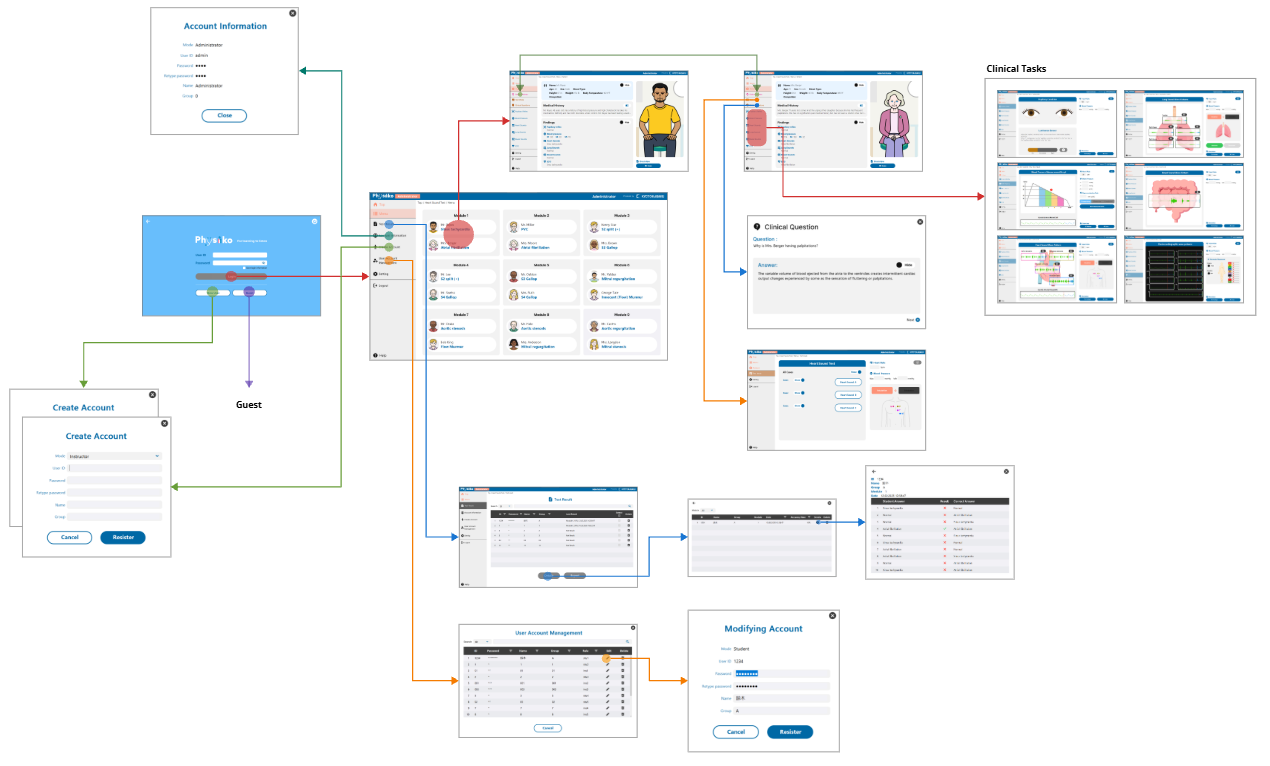
Student
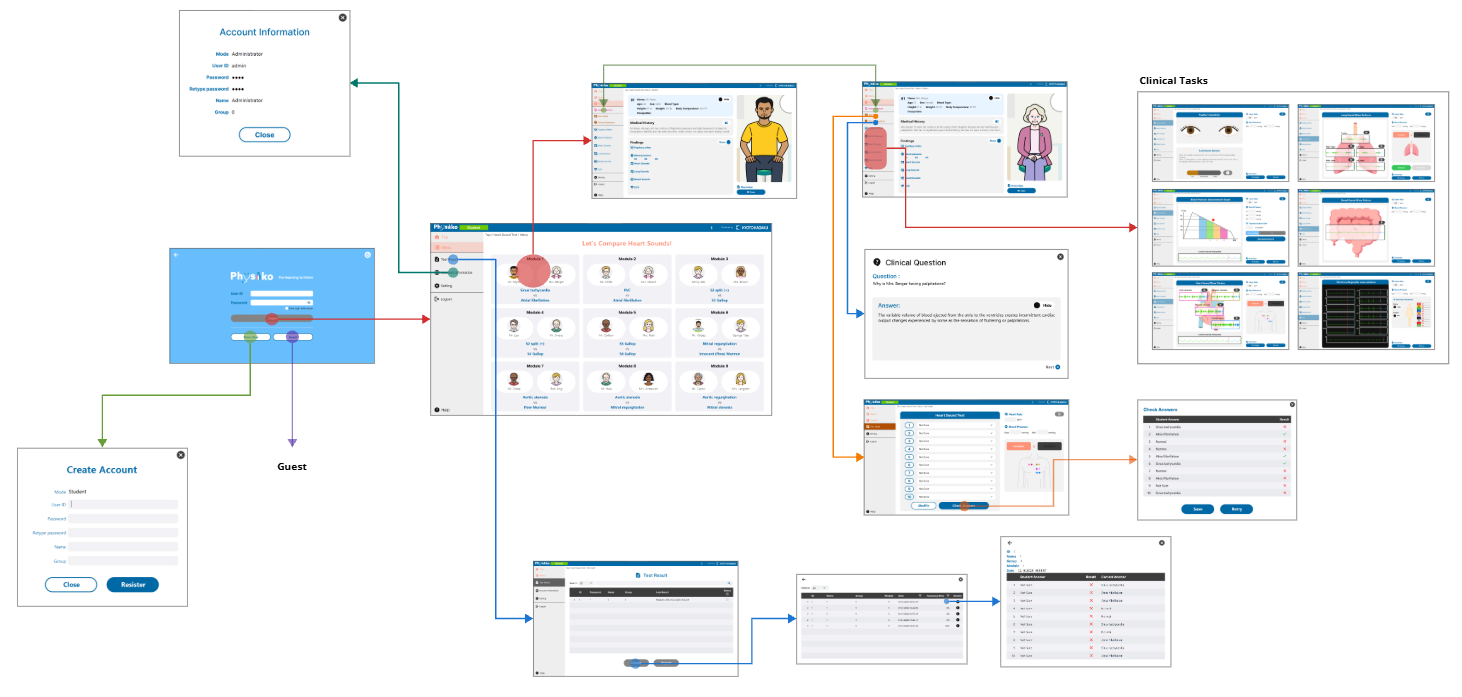
Guest
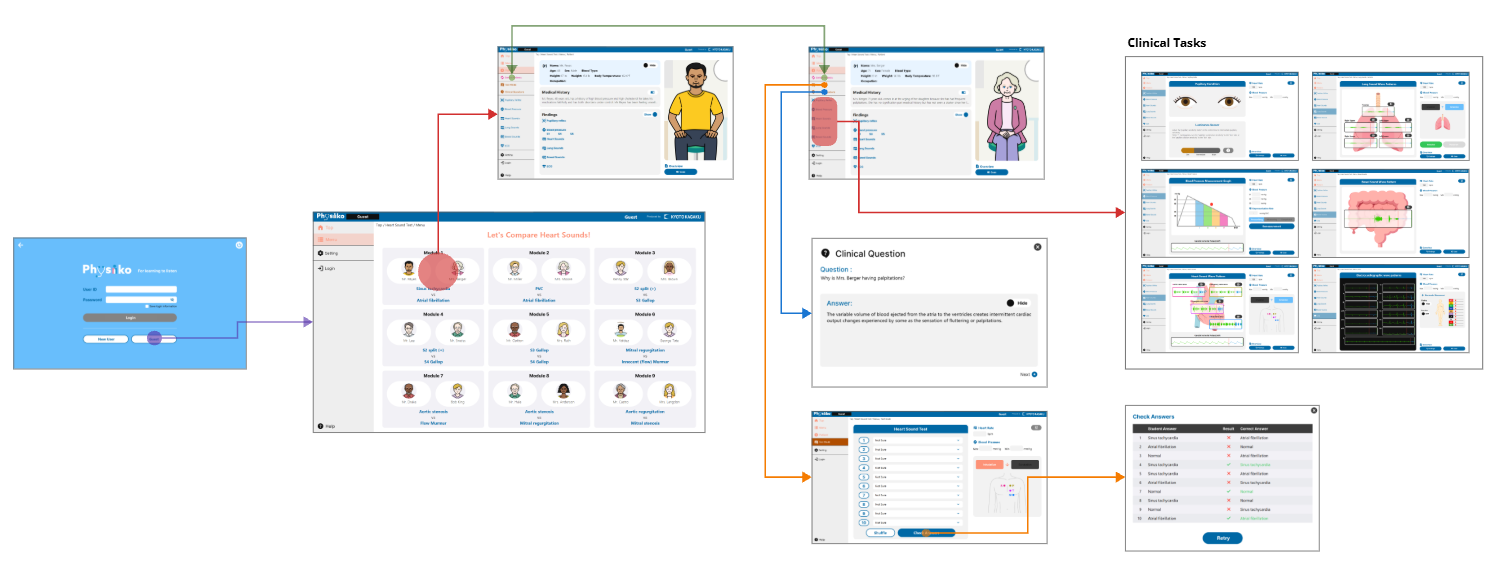
6.4.3 Functions
🖥Login screen: Log in with a registered account, create a new account, or continue as a guest.
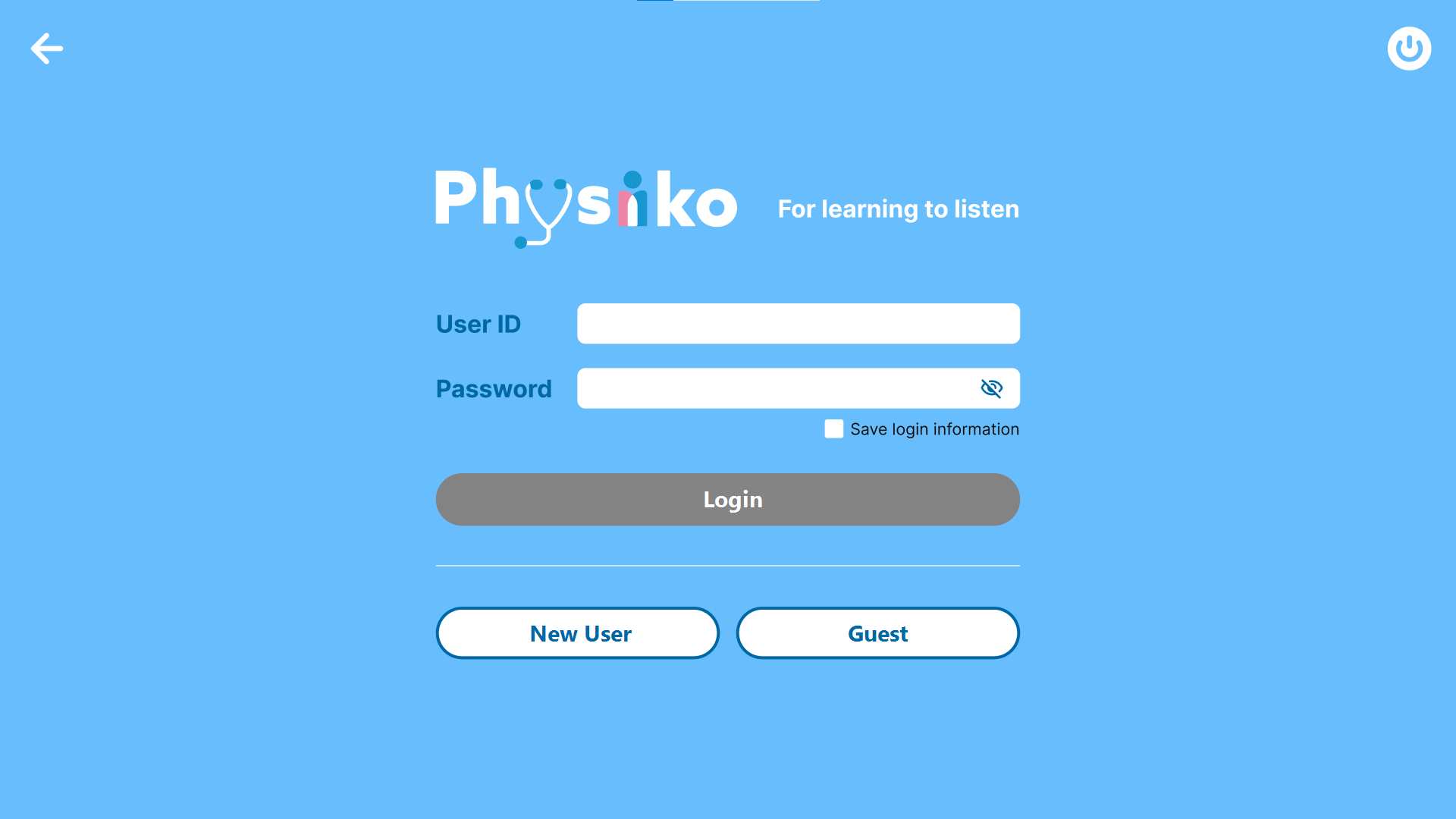
- User ID / Password
Enter the registered ID and password.
- Remember the latest User ID and Password
When enabled, the most recent User ID and password are stored.
If this option is disabled, or after logging out or restarting the device, login information must be entered manually.
- Login
Once the ID and password are entered, the Login button becomes active.
Press Login to start the Heart Sound Test.
- New User
Create a new account.
Only student accounts can be created from the Login Screen.
- Guest
Log in as a guest without creating an account.
🖥Module Selection Screen: This screen allows selection of training modules as well as viewing past test results and account information.
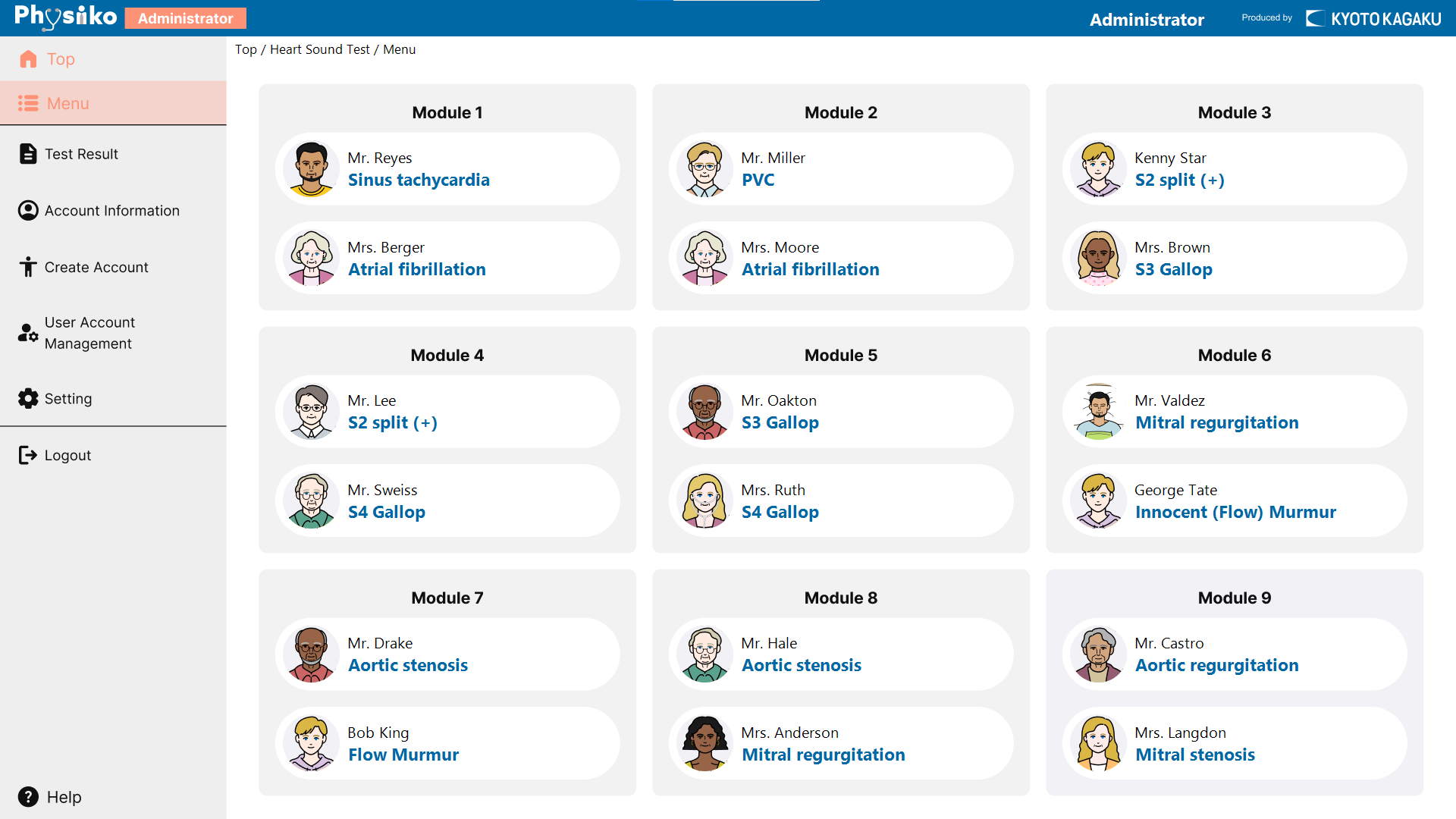
- Module Selection
Each modules consist of two patients, each with different cardiac conditions.
- Test Result
View or export the results of the Heart Sound Test.
- Administrator / Instructor: Can view the test results of all students.
- Students: Can only view their own test results.
- Account Information
Review and edit account information.
- Create Account
Create new user accounts (available to administrators and instructors only).
- Administrator: Can create both instructor and student accounts.
- Instructors: Can create student accounts only.
- User Account Management
Display user accounts in a list for viewing and editing. Available to administrators and instructors only.
- Logout
Log out of the current account and return to the login screen.
🖥Heart Sound Auscultation Training Screen: This screen allows checking and managing heart sound test results for each account.
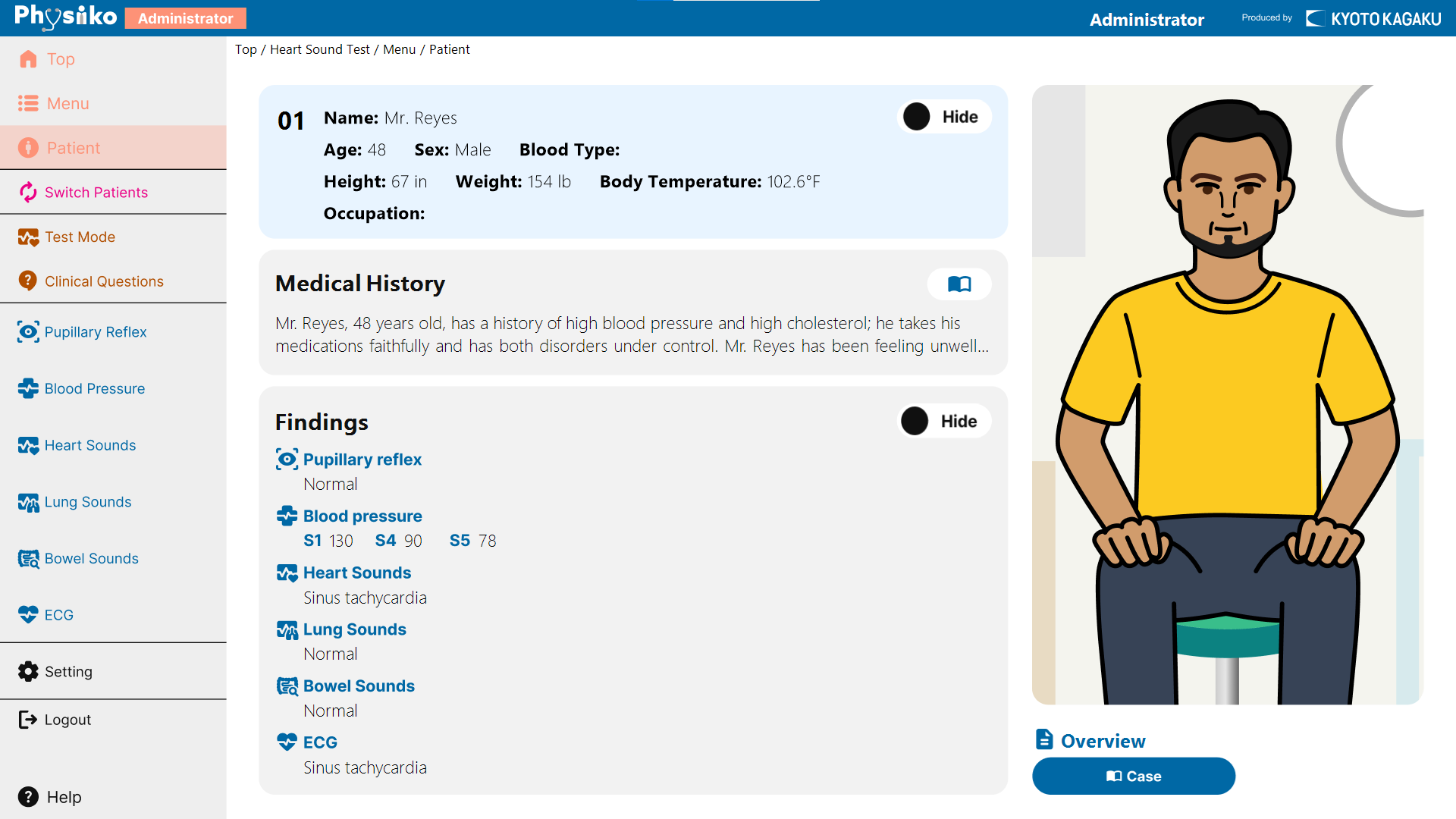
- Patient
Opens a screen displaying patient information, including symptoms and findings.
The visibility of each item can be toggled using Show/Hide buttons.
- Switch Patients
Switch to the other patient with different cardiac findings.
The change of patient datasets is immediately reflected in the simulator.
- Test Mode
Opens the Heart Sound Test screen.
- Clinical Questions
Opens the screen for clinical Q&A.
Refer to the “Common Section” for the Patient Information and Clinical Tasks screens.
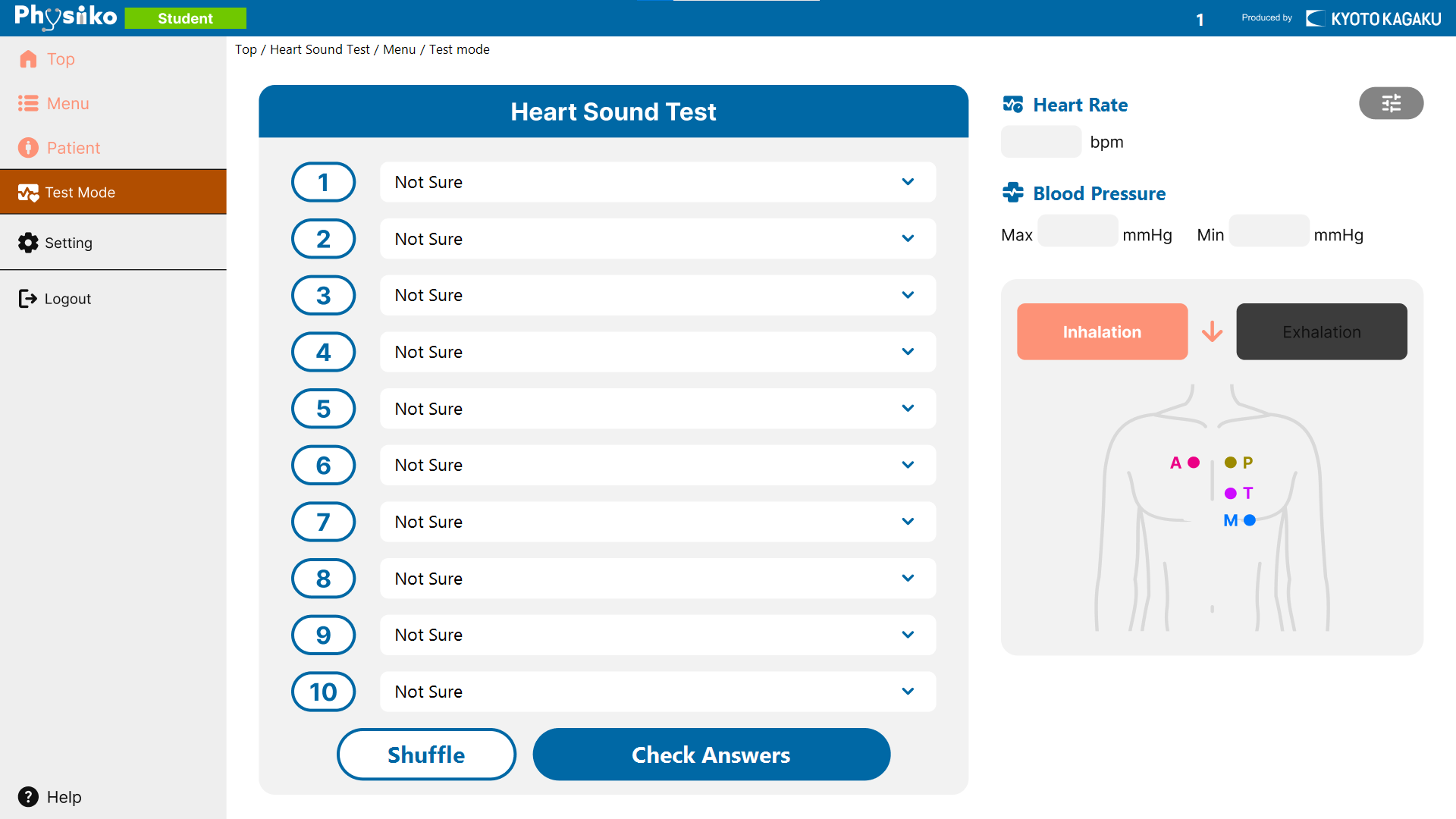
🖥Test mode screen: Performs a heart sound listening test and allows selecting the corresponding finding.
Administrator / Instructor
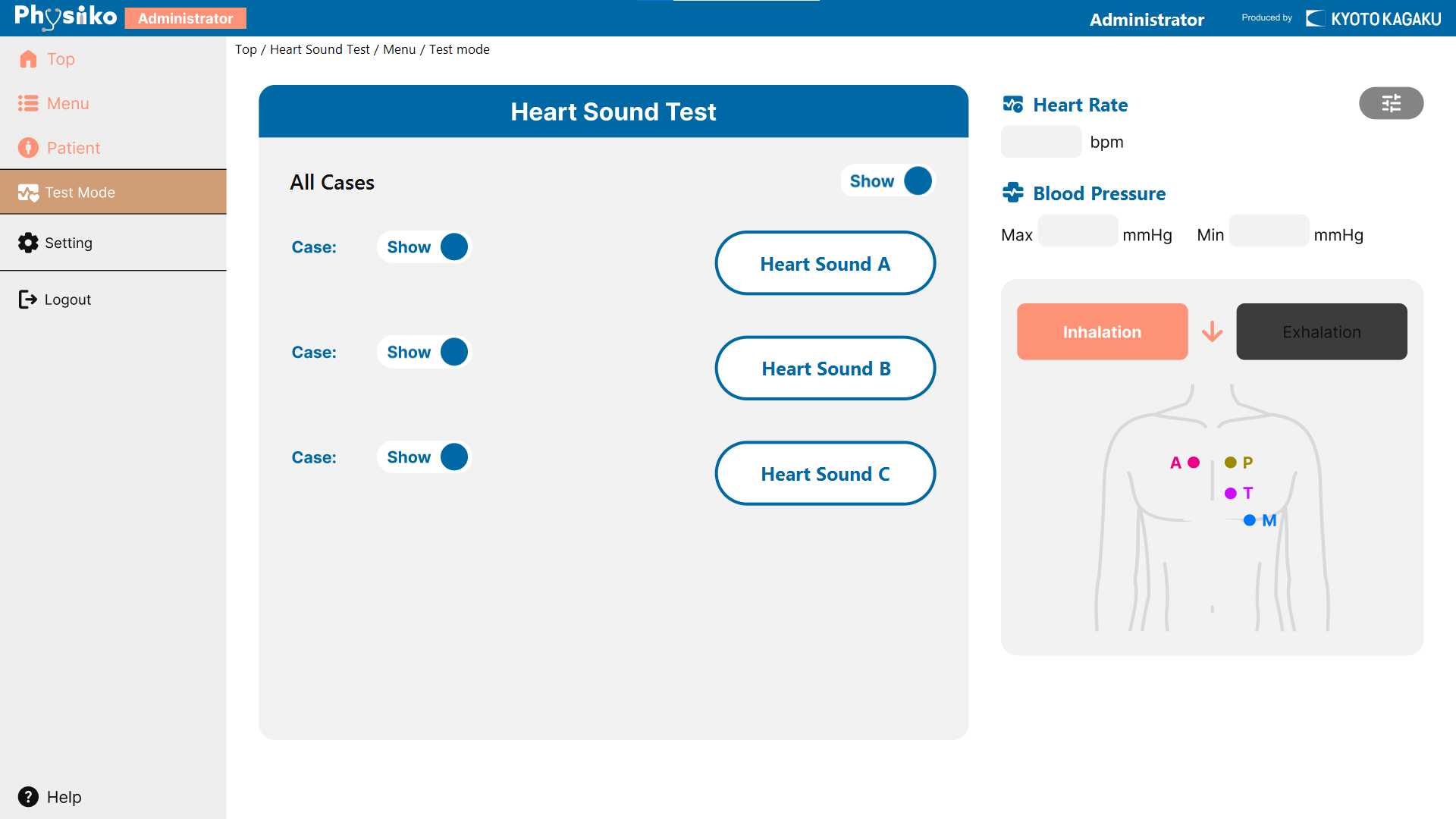
- Heart Sound buttons
Pressing a button plays one of the heart sounds at random on the simulator.
Pressing Show displays the name of the heart sound finding.
Student / Guest
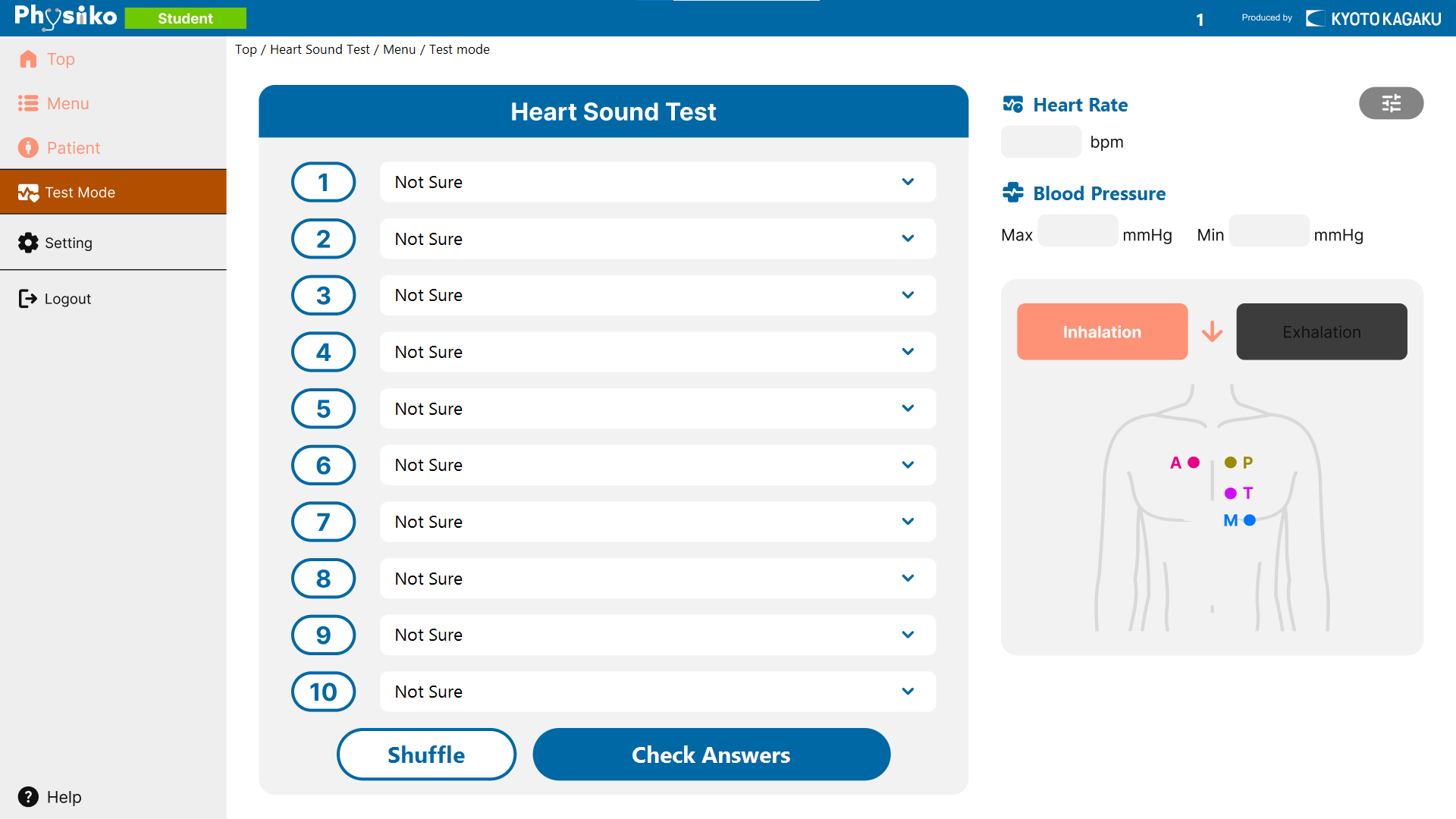
- Heart Sound Test
Pressing a numbered button plays a randomly selected heart sound.
After listening, select the appropriate finding from the pull-down menu.
- Shuffle
Randomly reassigns heart sound findings to the numbered buttons.
- Check Answers
Checks the selected findings against the correct answers.
Only student accounts can save test results.
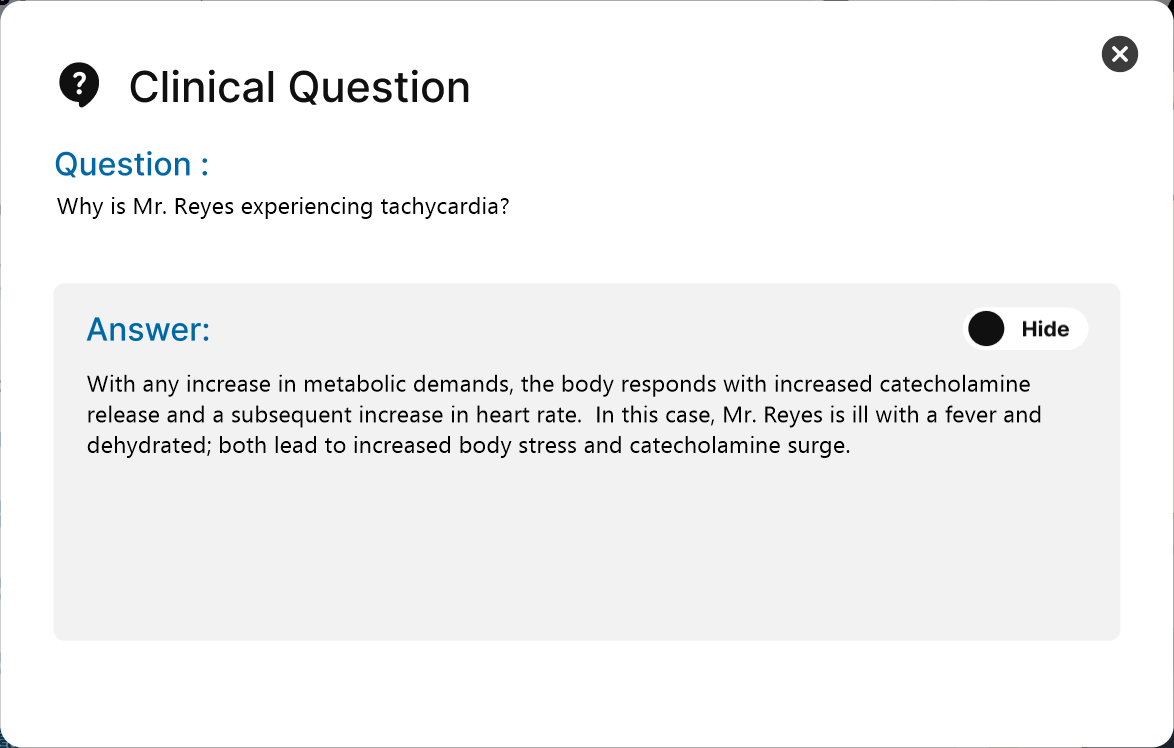
🖥Clinical Question Screen: Conducts Q&A tests with clinical questions related to cardiac findings.
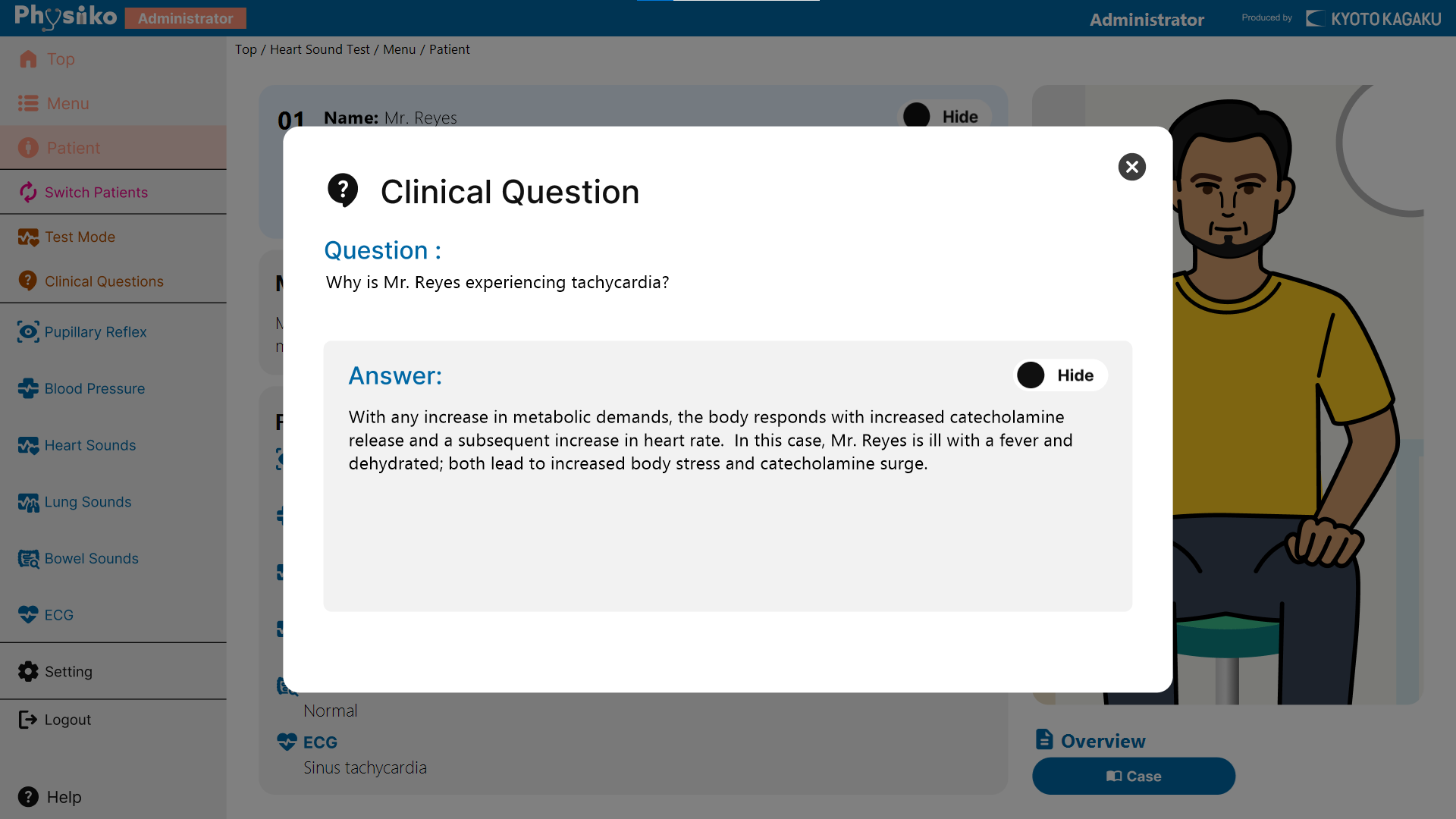
- Clinical Questions
Each module includes one or two clinical questions.
Press Show to display the answer.
🖥Test Result Screen: Displays the details of saved test results and allows searching, printing, or deleting them.
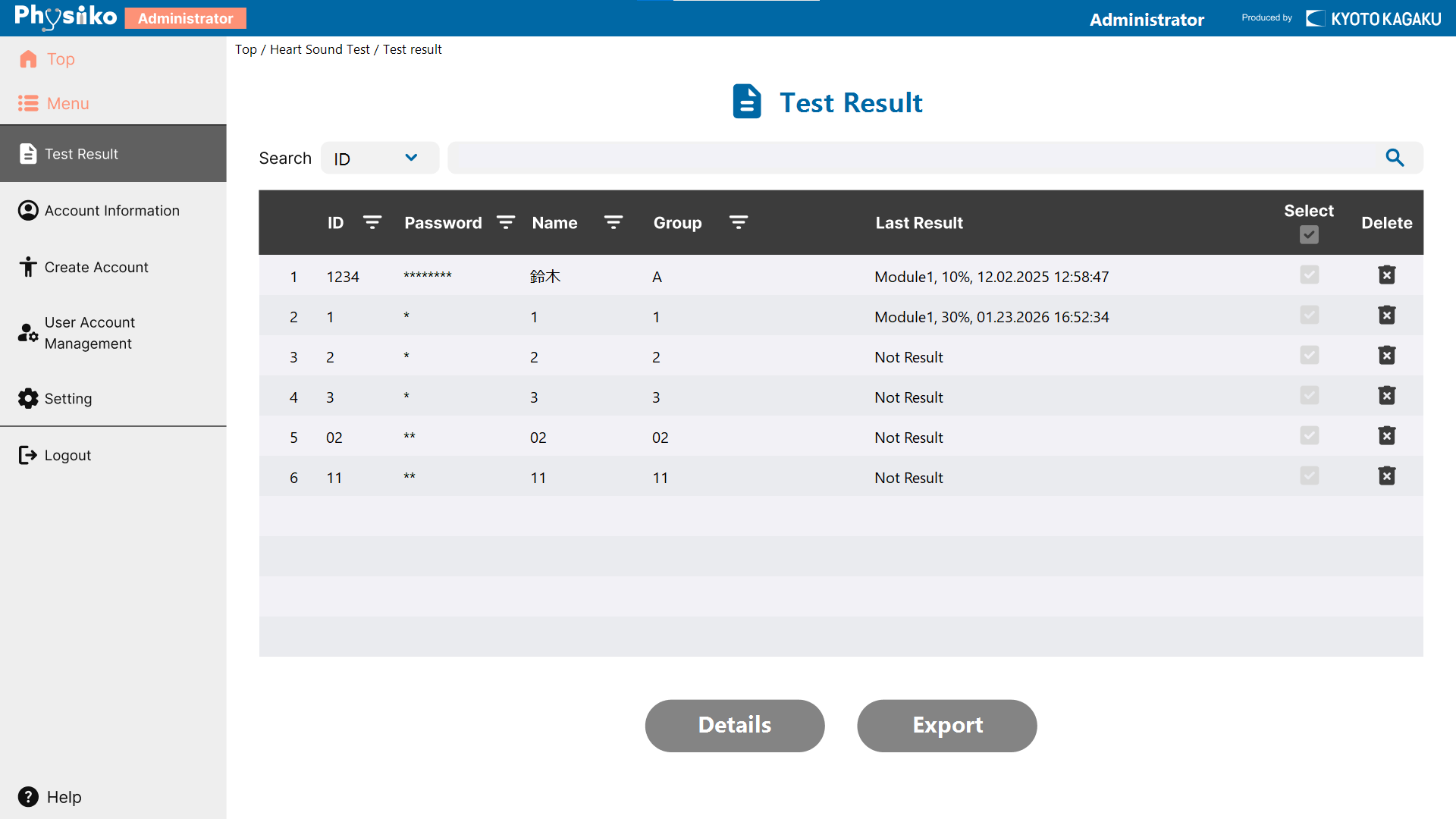
- Search
Search the test result for accounts using filters such as ID, name, group name, and so on.
- Select
Choose an account to view details or export its data as a file.
- Delete
Delete all test results linked to the selected account.
- Details
Show detailed test results for the selected account.
- Export
Export the test results in CSV format.
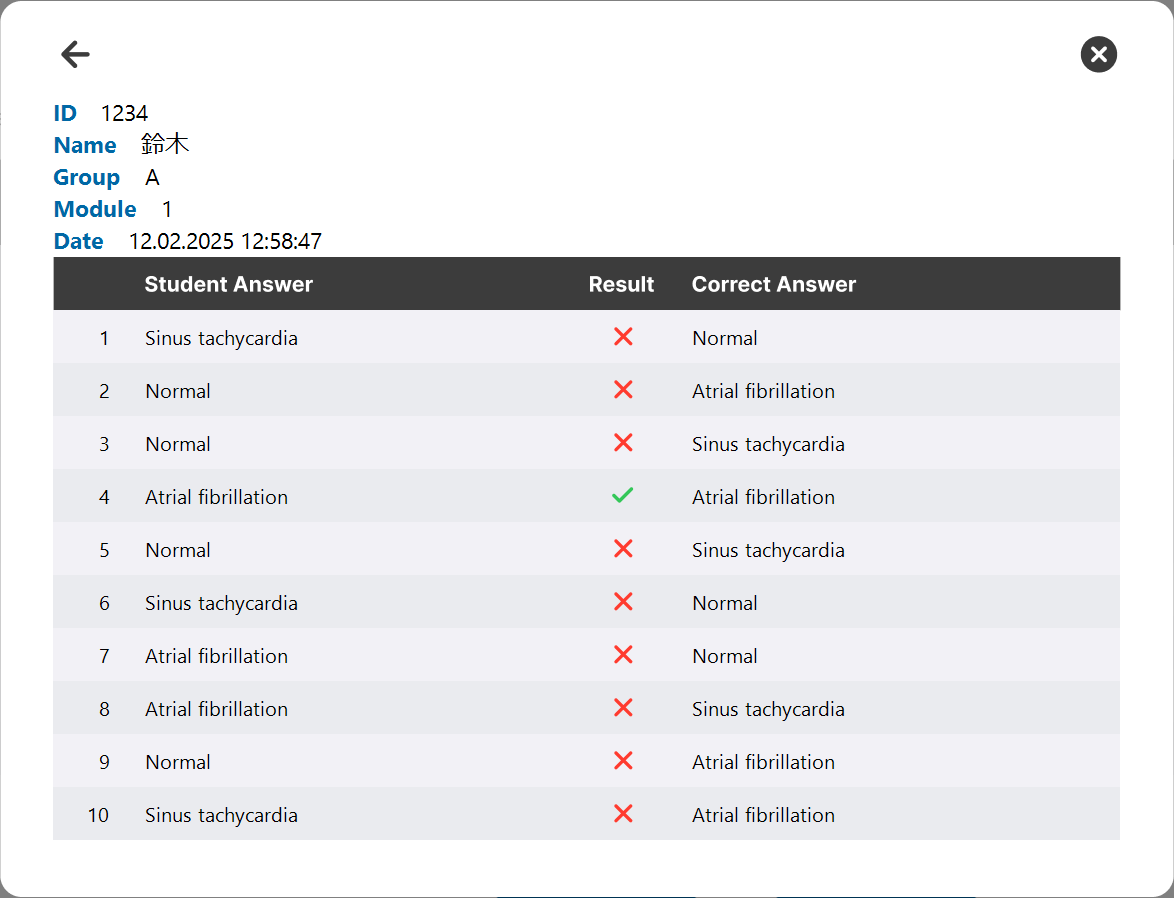
Pressing the Details button displays a list of test results for the selected account.
Then, individual test results can be selected to show the answers to all 10 questions.
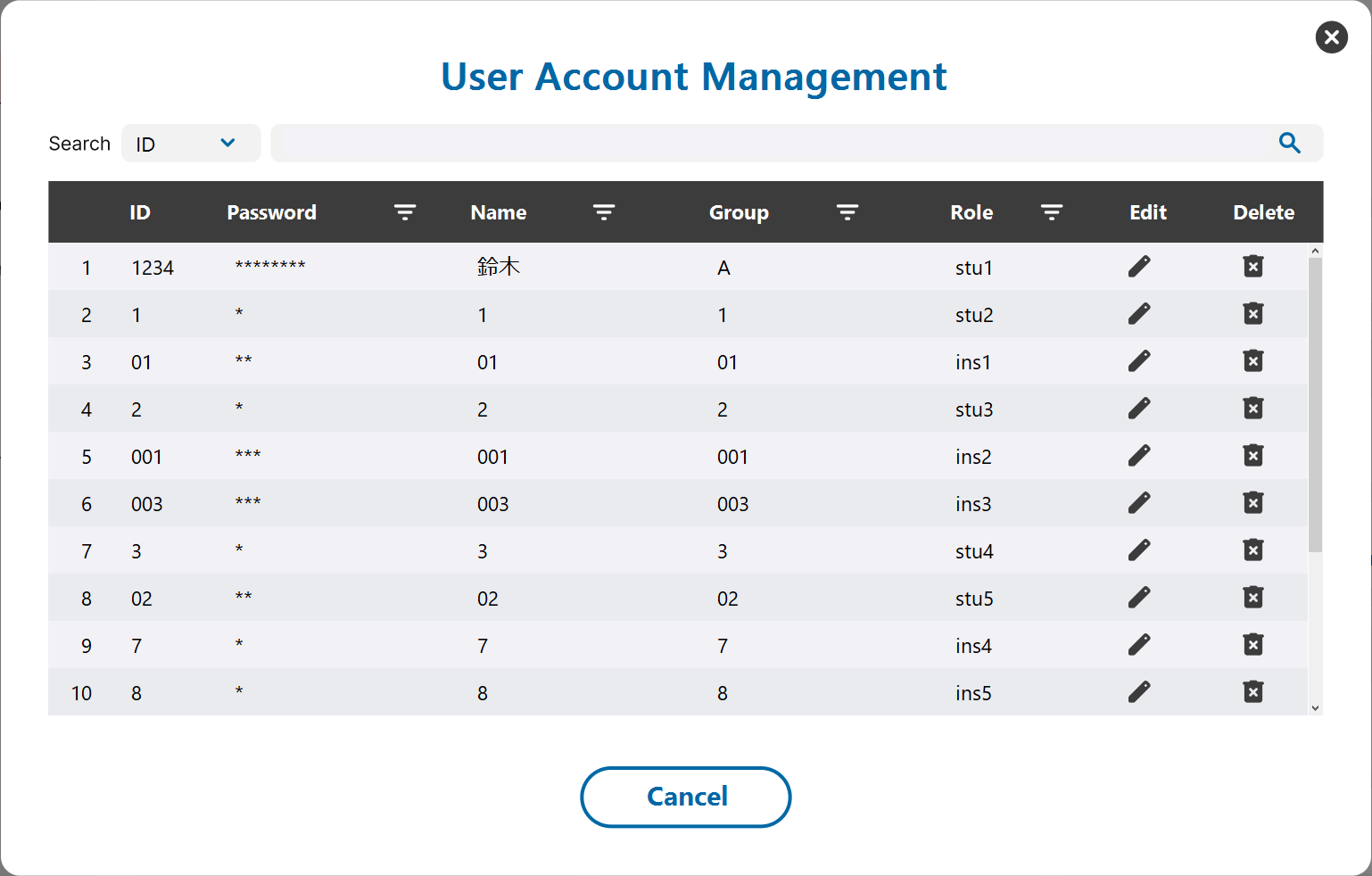
🖥User Account Management Screen: This screen provides functions to search, edit, and delete registered account information.
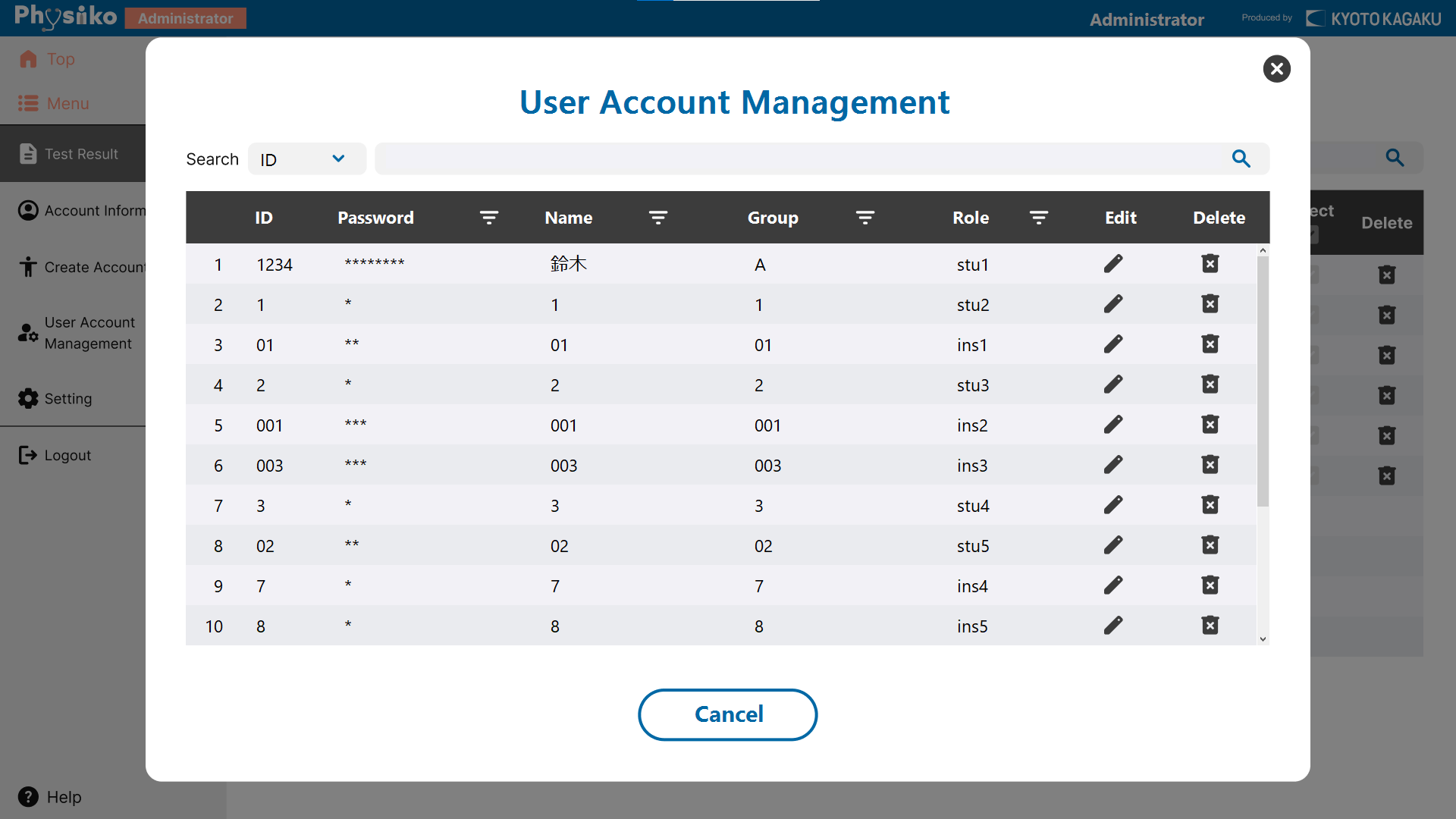
- Search
Search the test result for accounts using filters such as ID, name, group name, and so on.
- Edit
Opens the screen for editing the selected account.
- Delete
Deletes the information of the selected account.
6.4.4 Operation Flow
🧭[Create a New Account]
[Create a student account (anyone can create)]
- On the login screen, click “New User” to open the account creation screen.
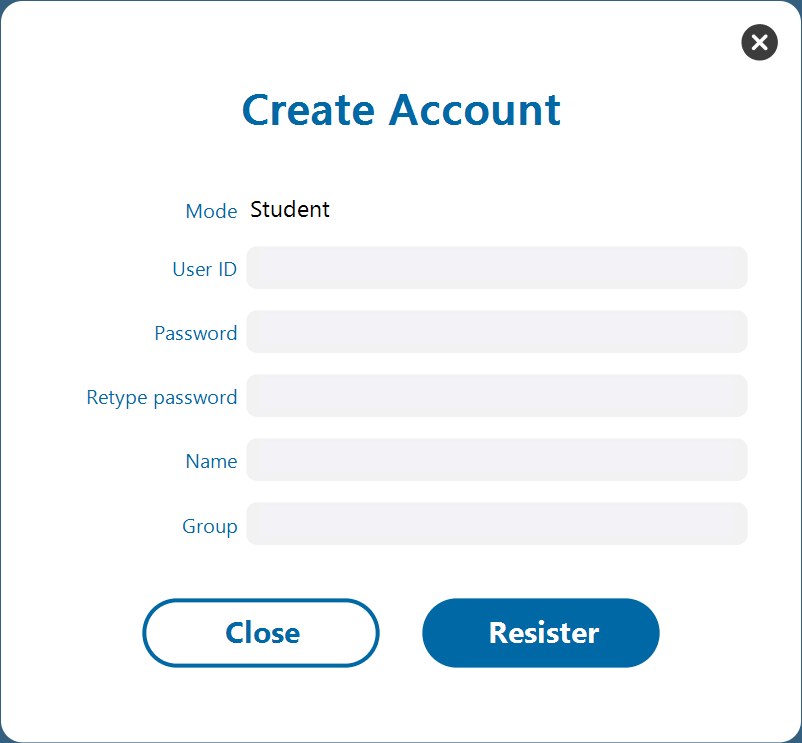
- Enter the required information, then click “Register” to display the confirmation screen.
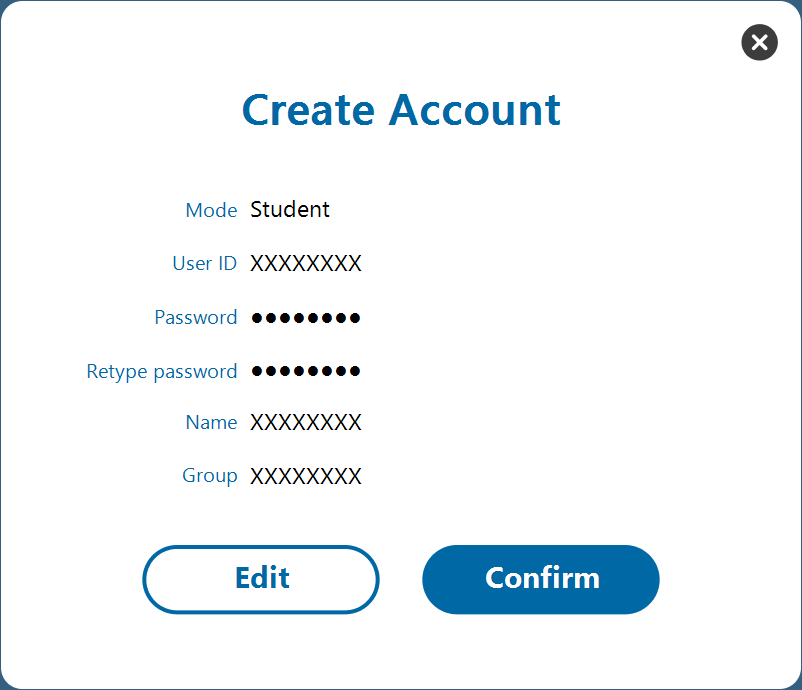
- If the information is correct, click “Confirm” to complete the process.
[Create an instructor account (administrator only)]
- Log in with an Administrator account.
- From the menu, select “Create Account” to open the account creation screen.
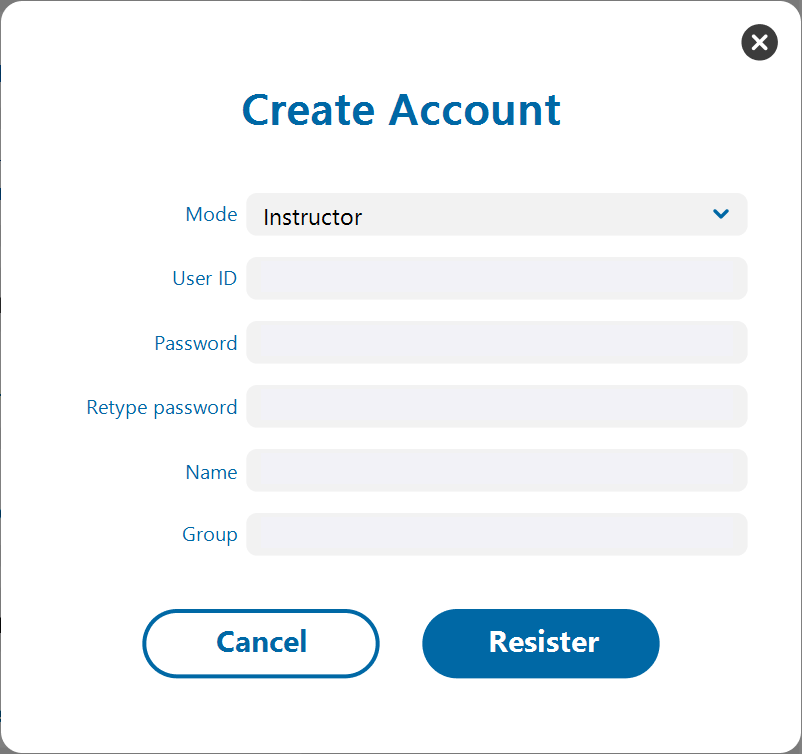
- From the Mode menu, select “Instructor.”
- Enter the required information, then click “Register” and then “Confirm” to complete the process.
🧭[View and Edit Account Information]
- Open the "Heart Sound Test" menu screen.
- Select "Account Information" from the menu.
- Information for the currently logged‑in account appears.
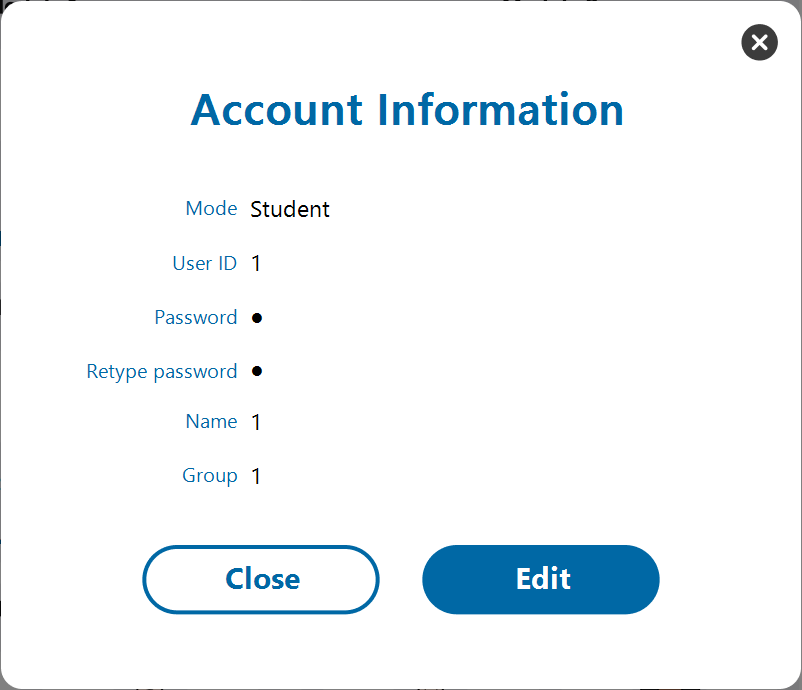
- Click "Edit" to open the editing screen.
- Make any changes, then click “Register”, followed by “Confirm”, to complete the process.
🧭[User Account Management]
Select User Account Management from the menu to manage registered account information.
- Log in as an Administrator or Instructor.
- Log in as an Administrator or Instructor. Search for accounts by ID, name, group name, or free text.
- To change the order of the list, click the Sort icon next to a column header. Each click switches the order between ascending and descending.

- Click the “Edit” icon to modify account information, following the same steps as View and Edit Account Information.
- Click the “Delete” icon to remove the account.
🧭[Use the Test Mode]
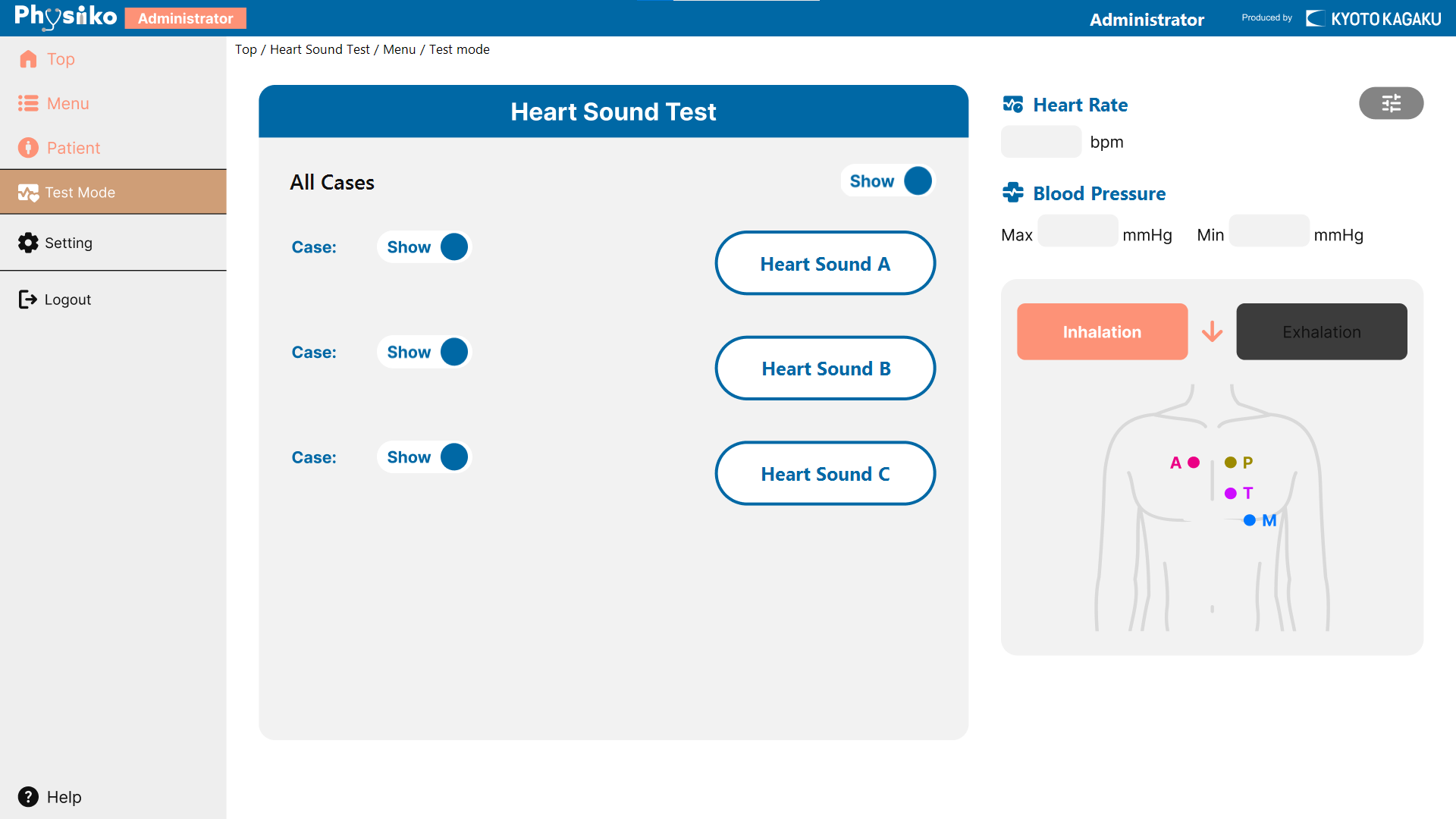
[Administrator / Instructor]
Administrator and Instructor account can check the heart sounds used in the test.
- Press "Heart Sound 〇" on the right side of the screen to play its sound on the simulator.
- Switch the visibility of the case name using "Show / Hide" button.
[Student / Guest]
For Student accounts or Guests, 10 heart sounds are randomly presented for auscultation training in a test format.
- On the test screen, press a Number button to play the corresponding heart sound on the simulator.
- After listening, select the heart sound name from the drop-down menu.
- Press “Check Answers” to display the correct answers for verification.
- Student accounts can save the test results.
- Click “Shuffle” to randomly rearrange the 10 heart sounds.
🧭[Use Clinical Questions]
Select “Clinical Questions” from the menu to start training in QA format.
- Use the “Show/Hide” button to display or hide the answers.
- Some modules contain multiple questions. Press the “Next” button at the bottom right to move to the next question.
🧭[View Test Results]
Select “Test Results” from the menu to view saved test results.
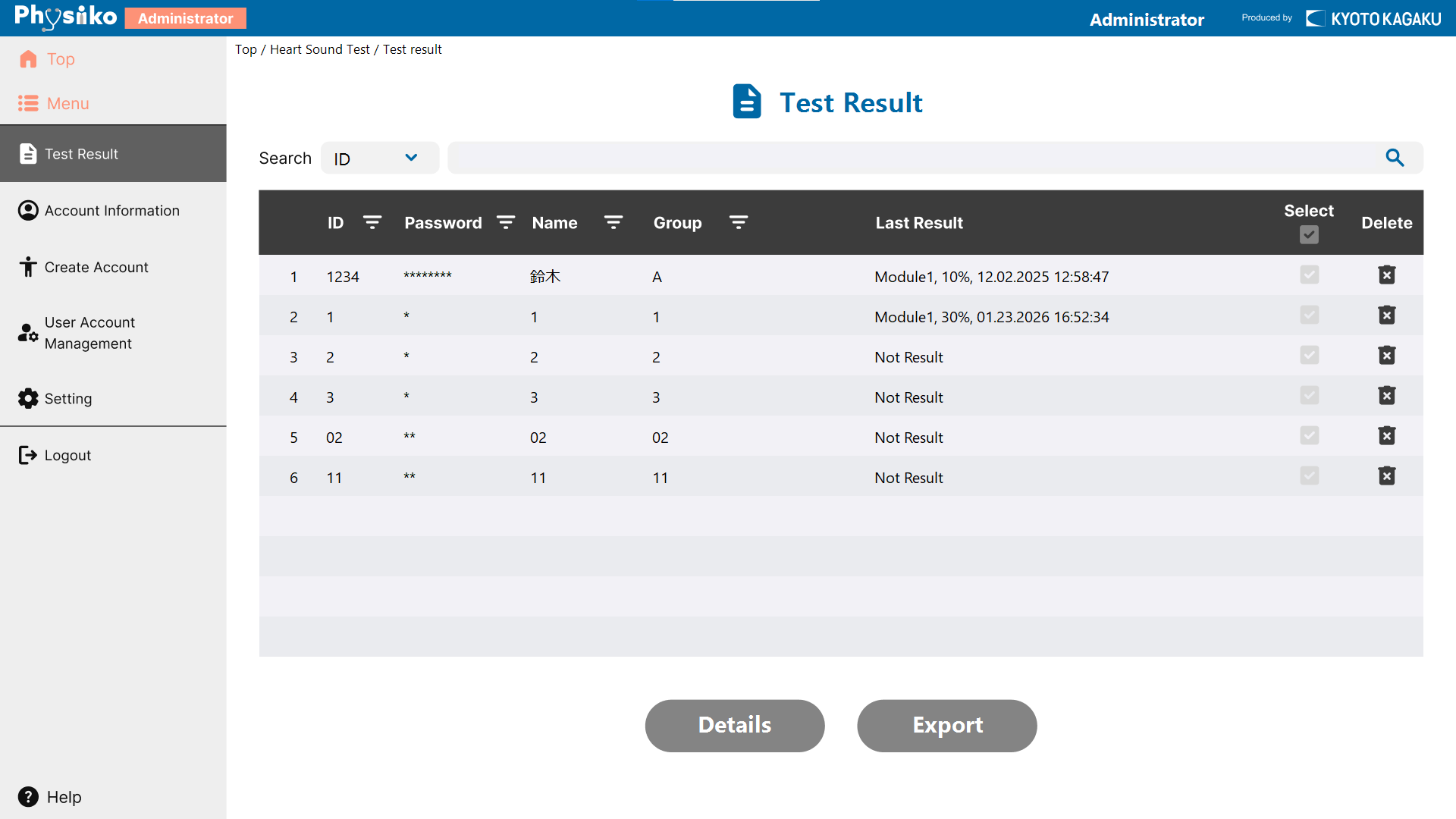
- Search for accounts by ID, name, group name, or free text.💡
Student accounts can only view their own results.
- To change the order of the list, click the Sort icon next to a column header. Each click switches the order between ascending and descending.

- Click the "Select" column to select an account.
- Click the “Details” button to display a list of test results for the selected account.
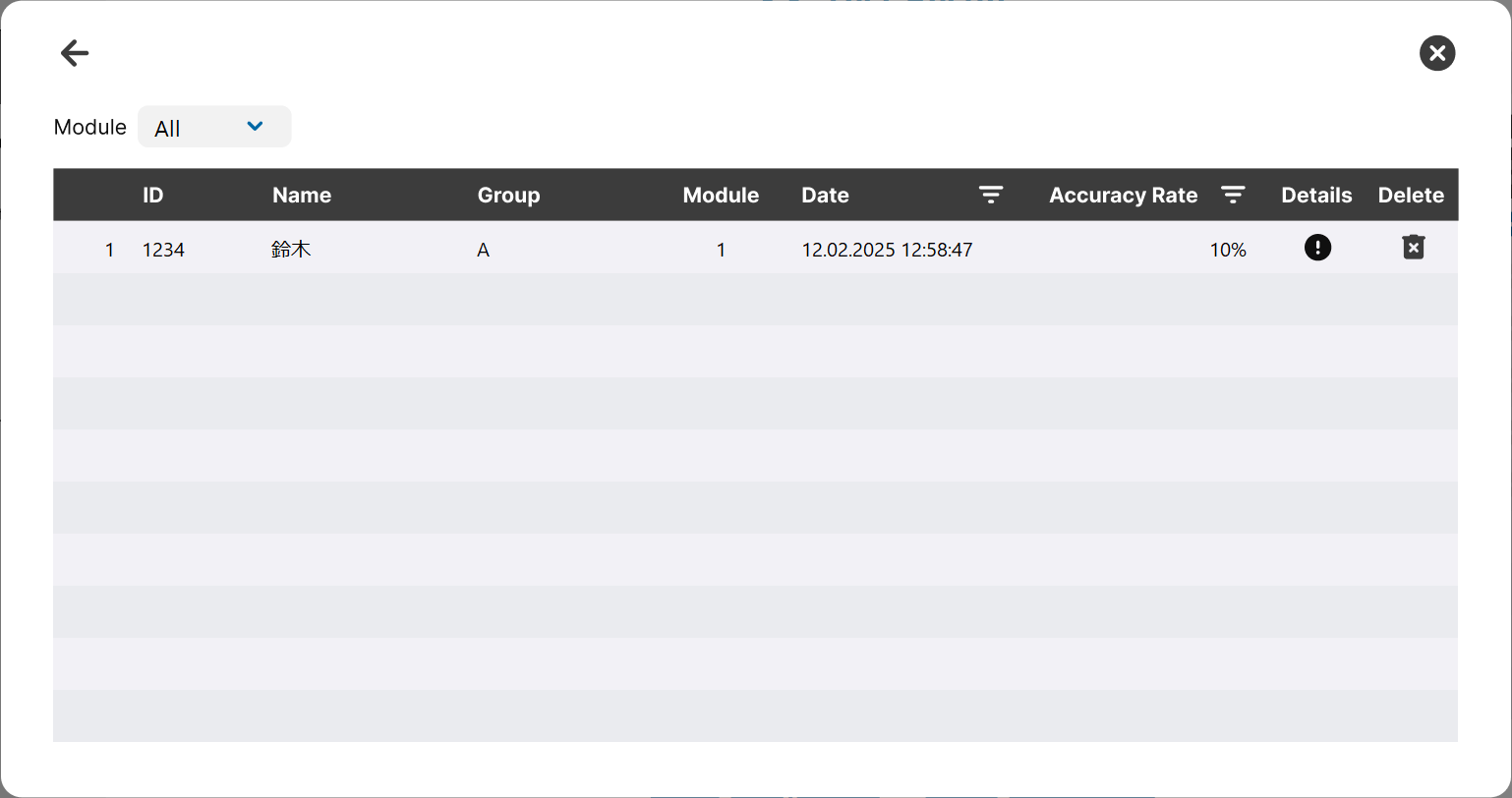
- Then click the "Details" icon on the list to open the result for 10 questions.
- Click “Export” to save the test results as a file.
- Click the “Details” button to display a list of test results for the selected account.
- Click the “Delete” column to remove all test results for the account.
6.4.5 注意点・補足
The screen design for Administrator and Instructor accounts is almost identical.
Refer to the “Common Section” for the Patient Information and Clinical Tasks screens.
Note that Guests cannot create accounts or save test results.
7. System Configuration
7.1 Overview
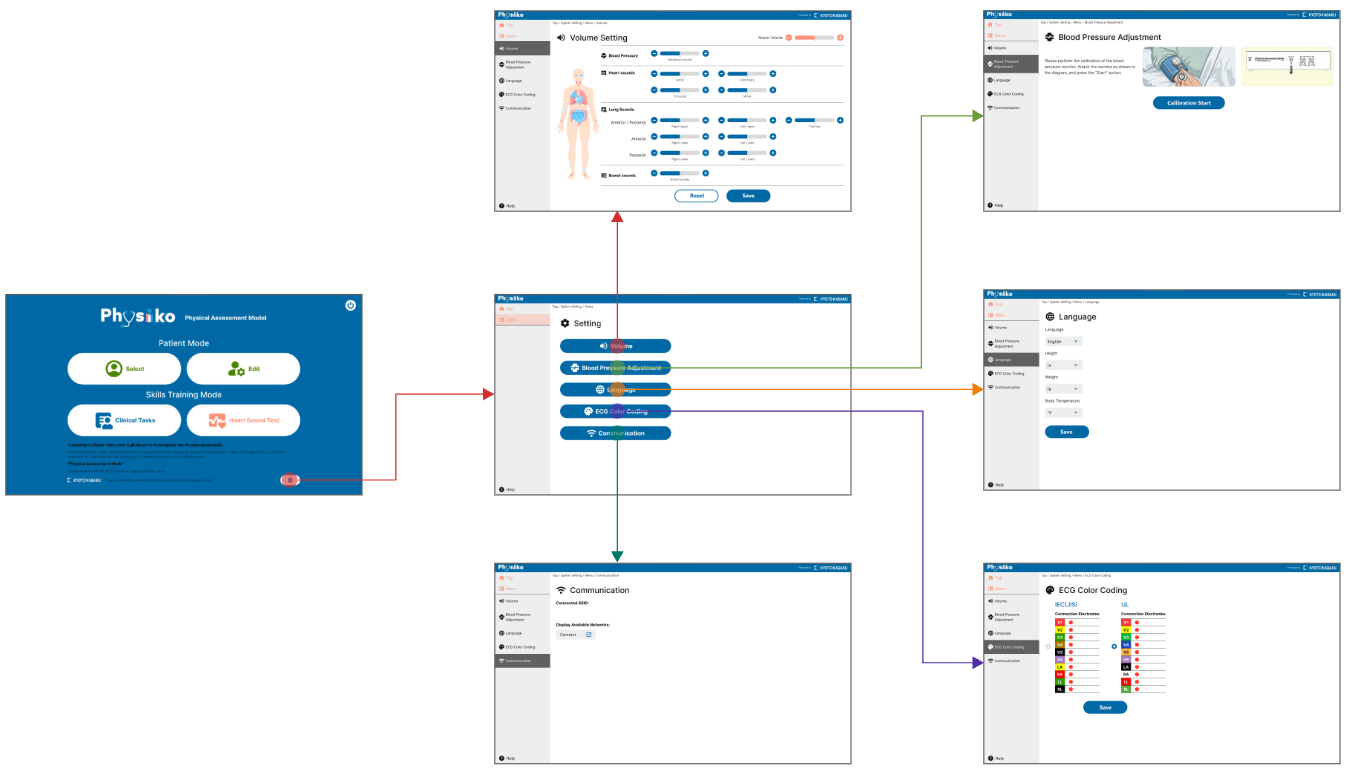
Adjust speaker volume, blood pressure calibration, language, units, ECG color standard, and Wi‑Fi settings.
To open this screen, click the gear icon on the top screen or select “Settings” from a menu.
7.2 Screens and Flow
7.3 Functions
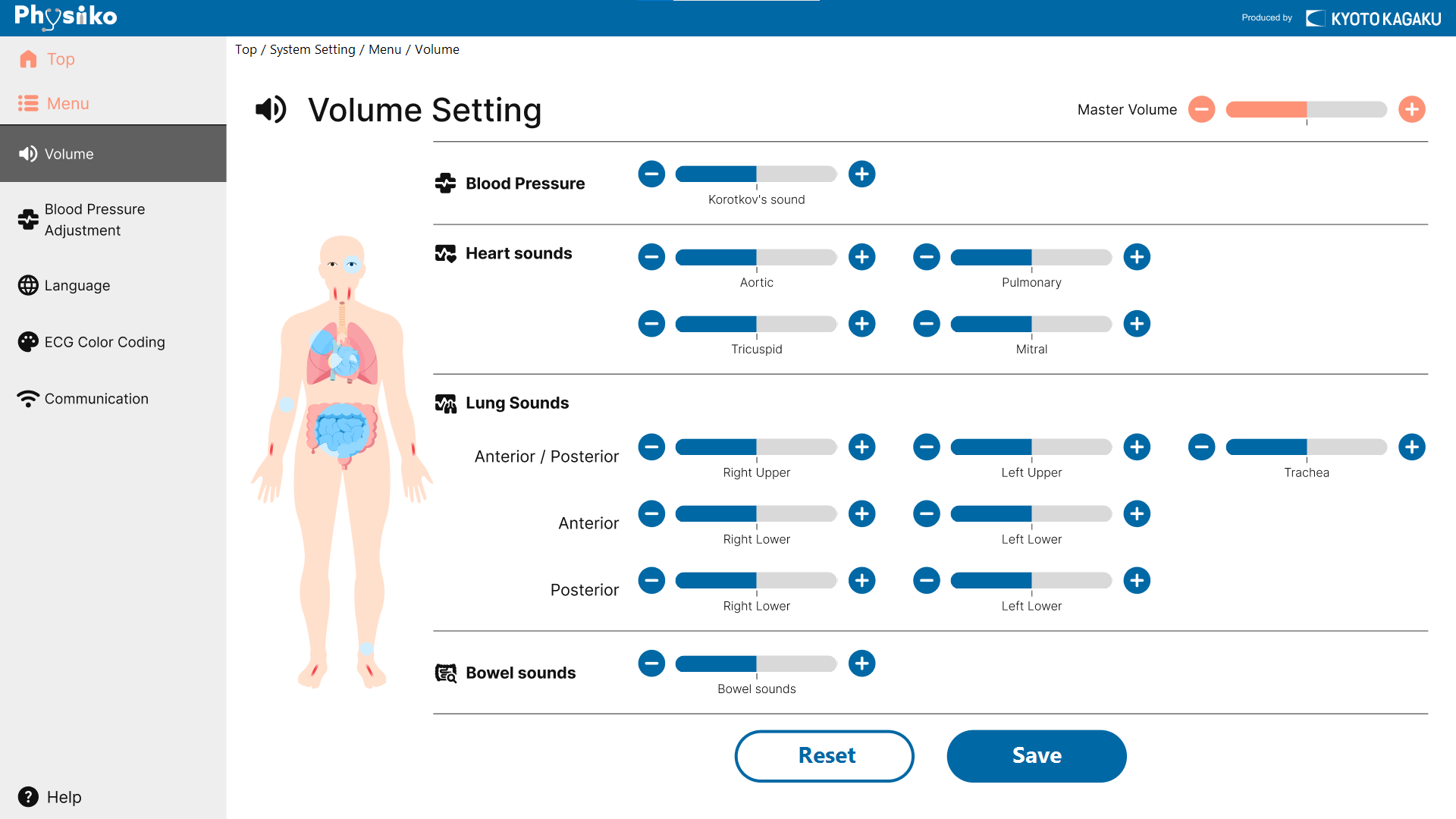
🖥Volume Setting: Adjust the speaker volume for each auscultation site.
- Master Volume
Adjusts the volume for all auscultation sites together.
- Volume settings for each auscultation site
Use the slider or + / − buttons to adjust the volume individually.
- Save
Save the adjusted volume settings.
- Reset
Restore the volume settings to the factory defaults.
🖥Blood Pressure Adjustment: Adjust the displayed cuff pressure to match the actual reading.
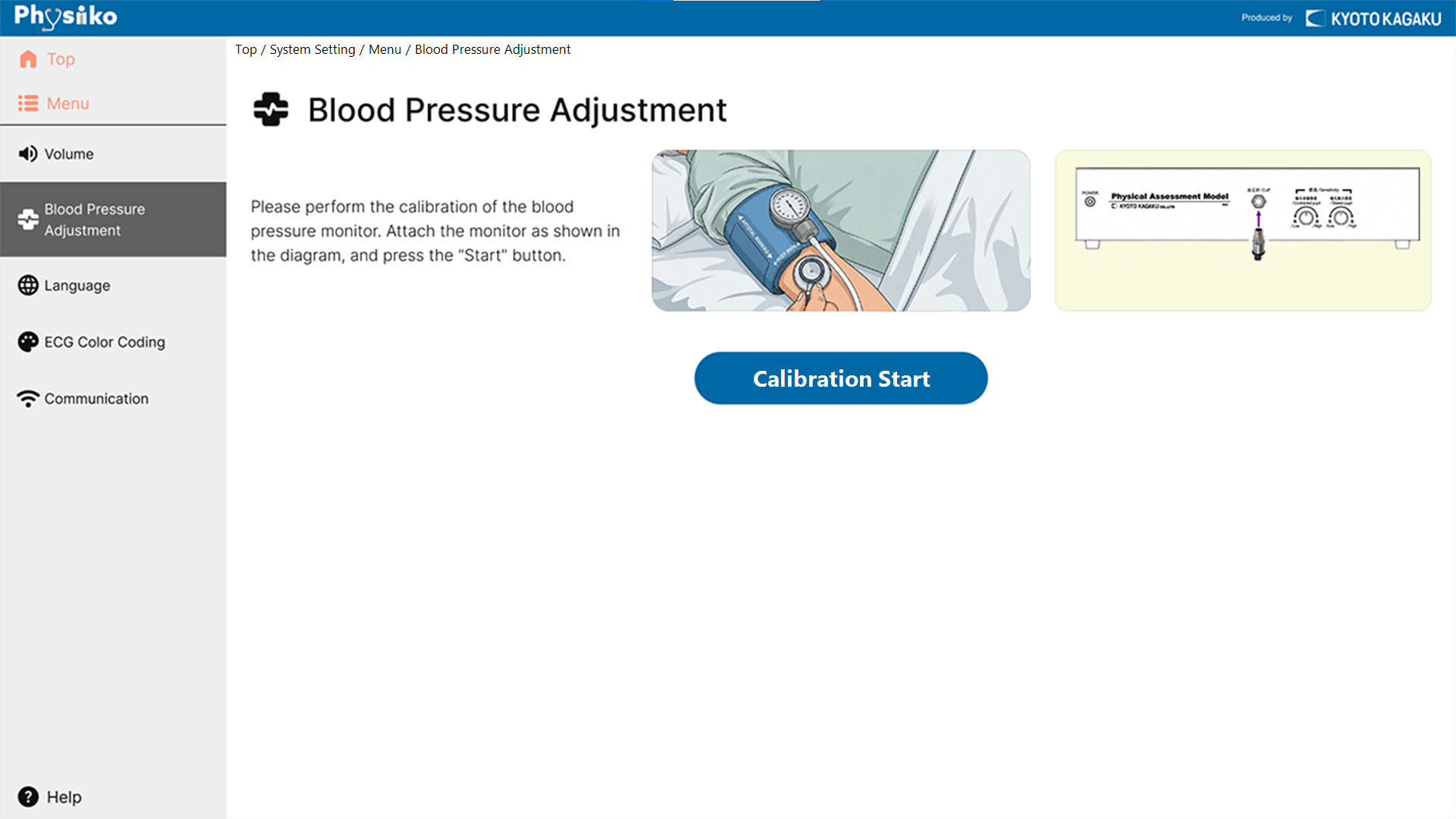
- Blood Pressure Adjustment
Follow the on‑screen instructions and use the buttons to correct any differences.
🖥Language Setting: Change the language and unit settings.
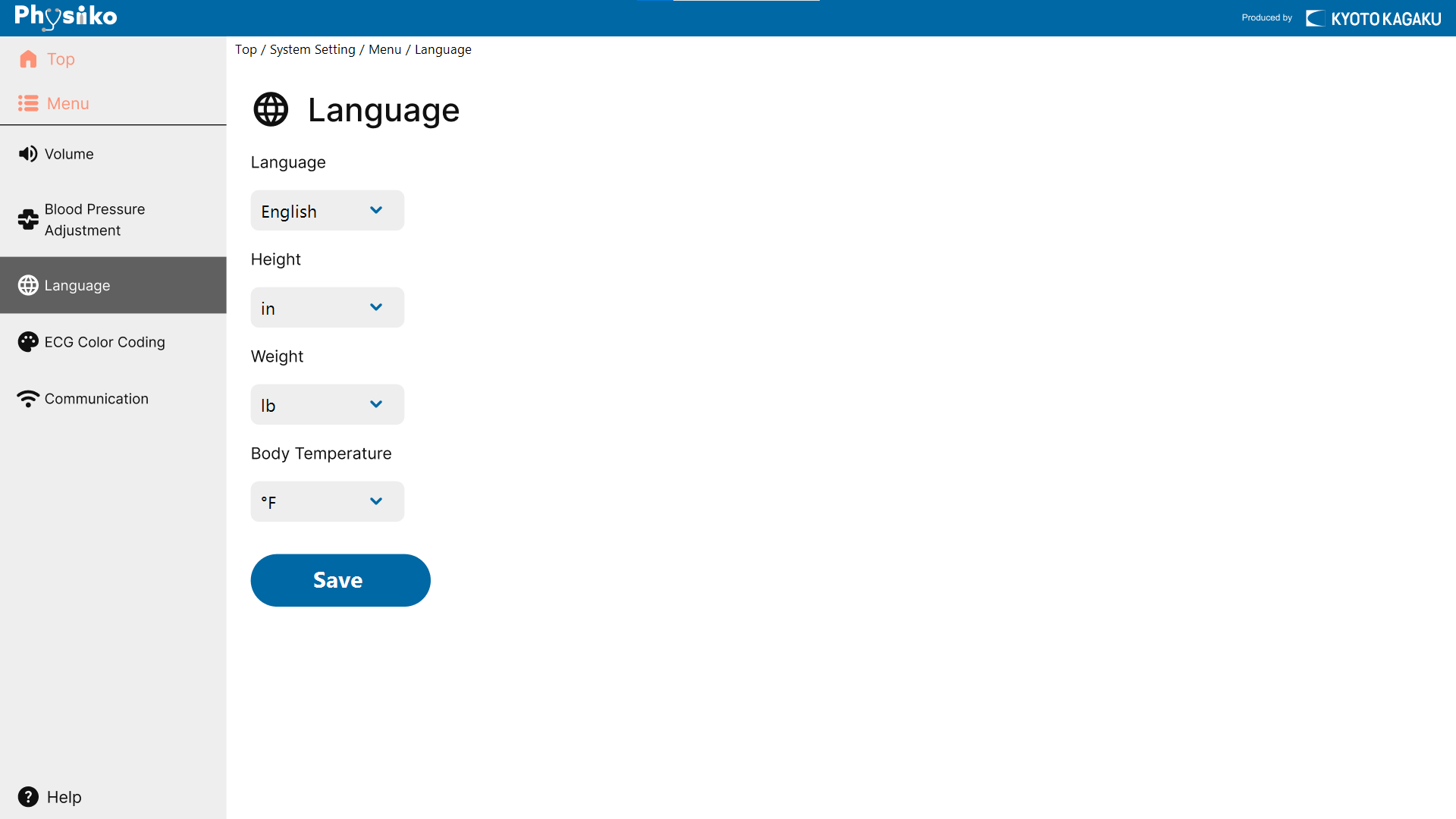
- Language
Choose from English, Spanish, Japanese, Korean and Russian.
- Height
Select from "in" or "cm”
- Weight
Select from "lb." or "kg" .
- Body Temperature
Select from"℃" or °F"
- Save
Save selected language and unit settings.
🖥ECG Color Coding: Select the color coding standard for ECG electrodes.
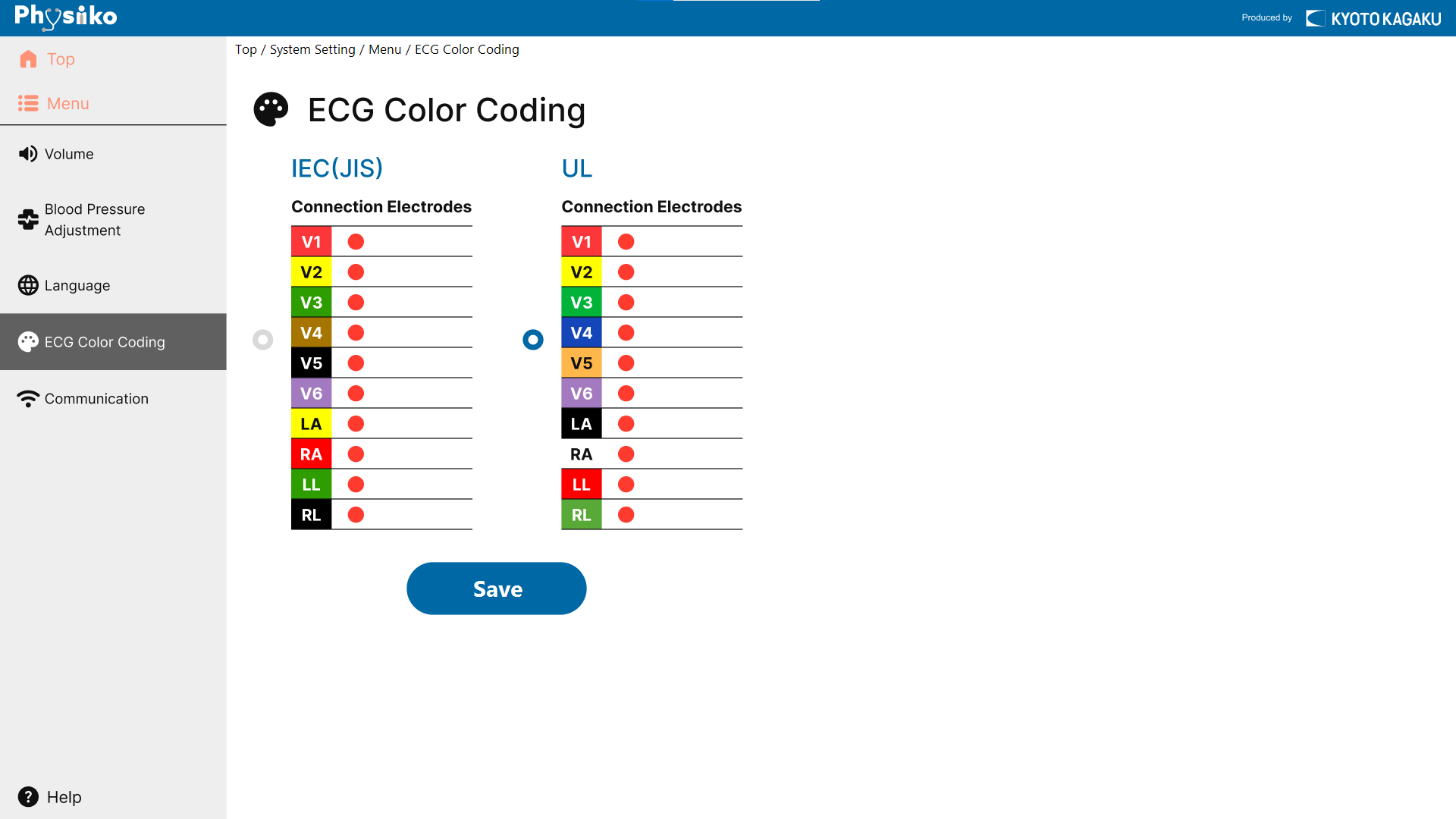
- Electrode Color Coding
Choose from IEC or UL.
- Save
Saves the selected ECG color coding.
🖥Communication Settings: Connect to or switch between Wi‑Fi networks.
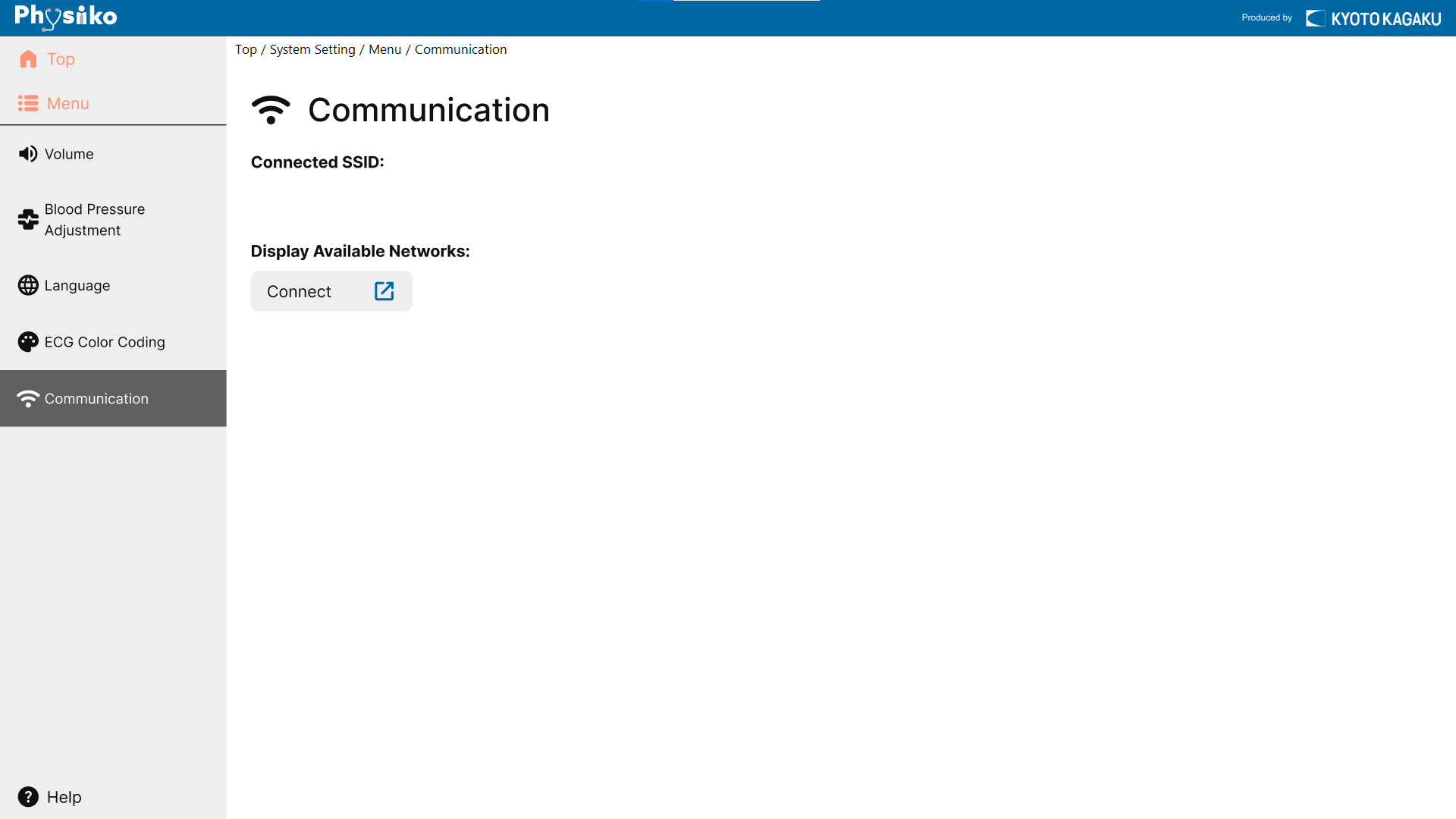
- SSID
Displays the currently connected network.
- Display Available Networks
Click “Connect” to display a list of available networks, then select a network to connect.
7.4 Operation Flow
🧭[Wi-Fi Connection and Switching]
- Select "Communication" from the settings screen.
- Press the “Connect” button.
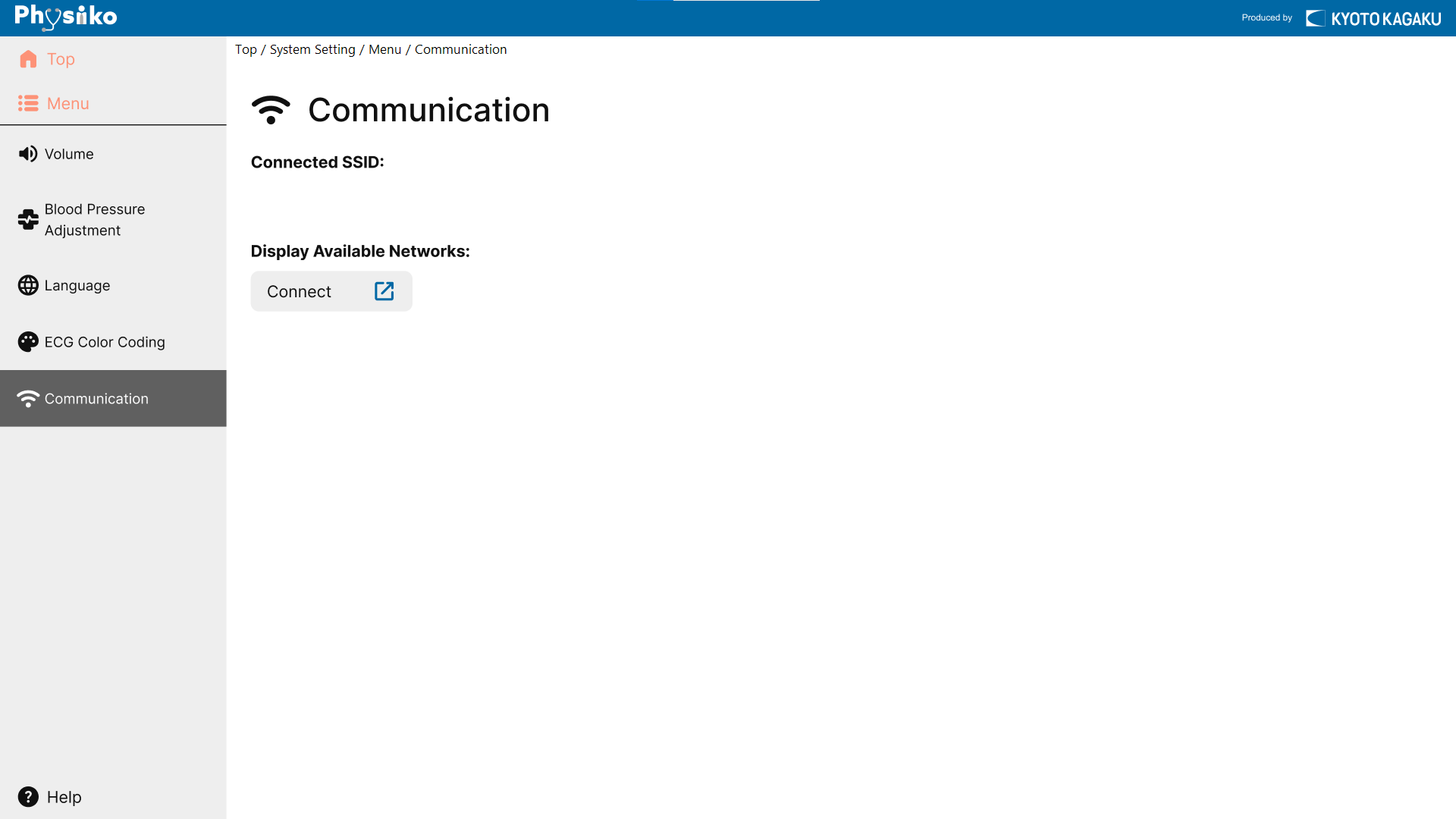
- Available networks (SSIDs) will appear on the right side of the screen.
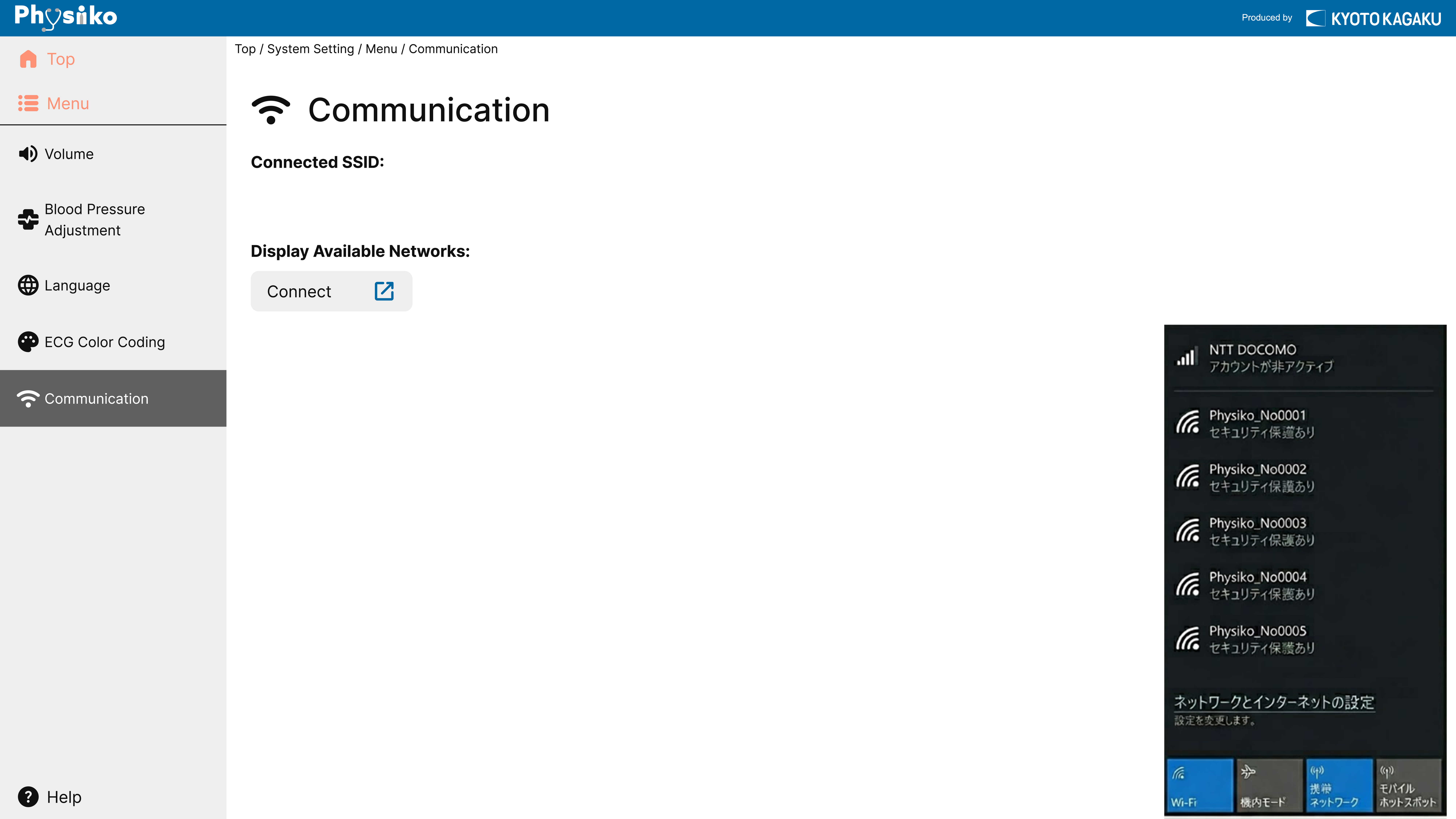
- Enter the password if required, then click Connect.
- When the connection is established, the message Connected appears, and the selected network name is shown under SSID. The connection is now complete.
7.5 Others
Follow the on‑screen instructions to calibrate the blood pressure settings.
Changed settings are retained even after closing the app.
8. How to Exit the app
- Display the Top screen. When on another screen, select Top from the Menu to return to the top screen.
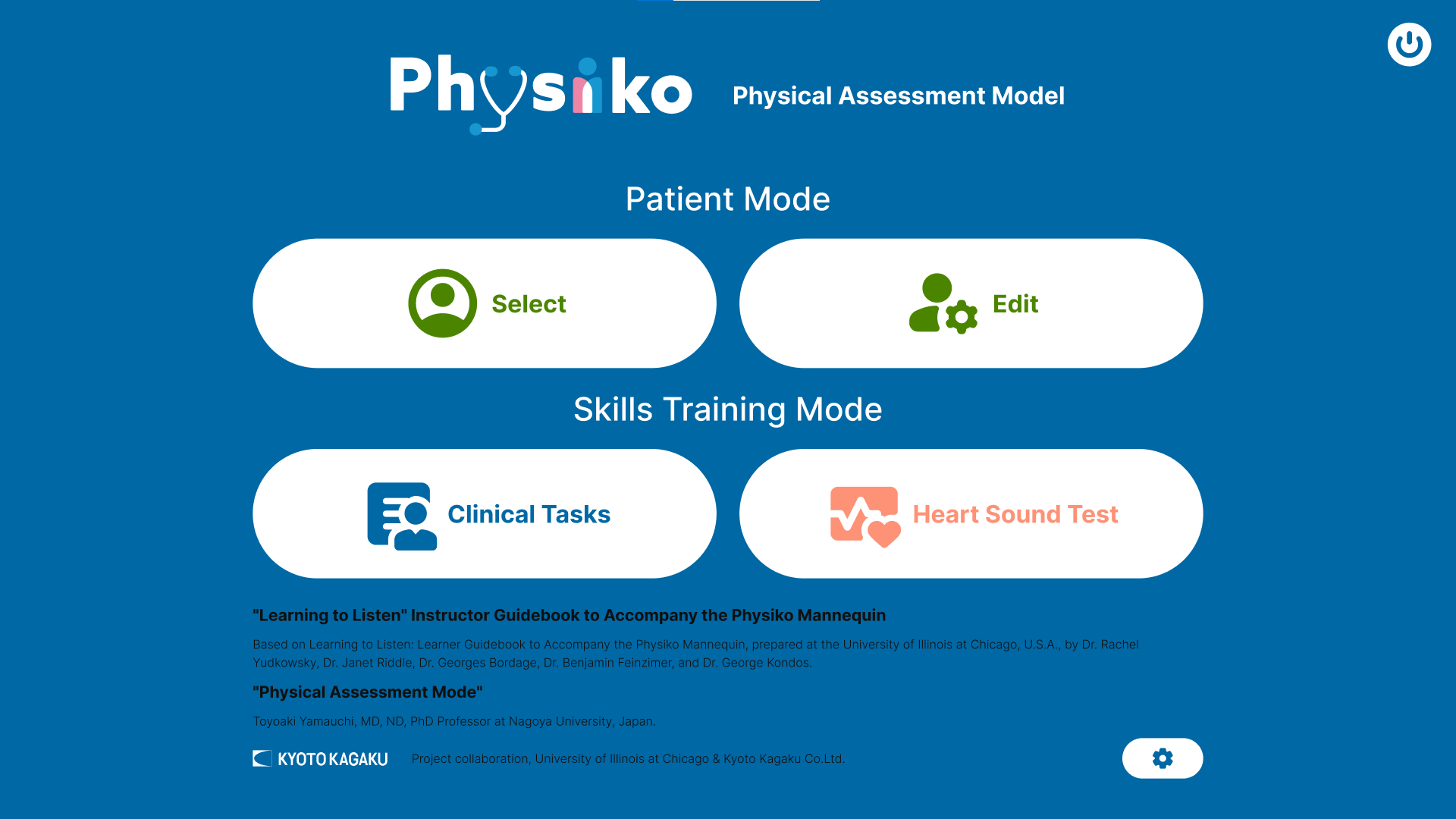
- Press the power icon in the upper‑right corner.

- A confirmation message appears. Press OK.

- The application closes and the power turns off automatically.
9. FAQ
Q1: I can't log in. What should I do?
A. Verify that the ID and password are correct.
The system is case-sensitive and distinguishes between full‑width and half‑width (double‑byte / single‑byte) characters.
If the problem persists, consult the owner of an Administrator or Instructor account.
Q2: I’m having trouble hearing heart or lung sounds. What should I do?
A. Check the volume settings.
On the Configuration screen, open Volume Settings and confirm that the volume for each auscultation site is high enough. Adjust the volume if necessary.
Q3: I cannot save patient datasets.
A. Verify that age information is entered.
After entering age (and gender), the Save button becomes active.
Q4: I want to create a Instructor account.
A. Instructor accounts can only be created by an Administrator.
Log in as an Administrator, select Create Account from the menu, set Mode to Instructor, and enter the required information.
Q5: I want to delete the account I created.
A. Only Administrator or Instructor accounts can delete accounts.
Student accounts and Guests cannot delete accounts. Ask the owner of an Administrator or Instructor account for deletion.
Q6: I cannot save the results of the Heart Sound Test.
A. Test results are saved only for Student accounts.
Guests cannot save test results.
Q7: I cannot connect to Wi-Fi
A. On the Communication Settings screen, press Connect to display available SSIDs.
Connection may fail due to an incorrect password or weak signal.
Try another SSID or check the network environment.
Q8: I want to learn more about variations in heart and lung sounds.
A. Use the Case Explanation or Finding Explanation buttons available in each mode.
Finding Explanation describes what conditions abnormal heart or lung sounds indicate.
Case Explanation provides the patient’s background and key points for physical assessment.
Use these functions whenever questions arise during training.